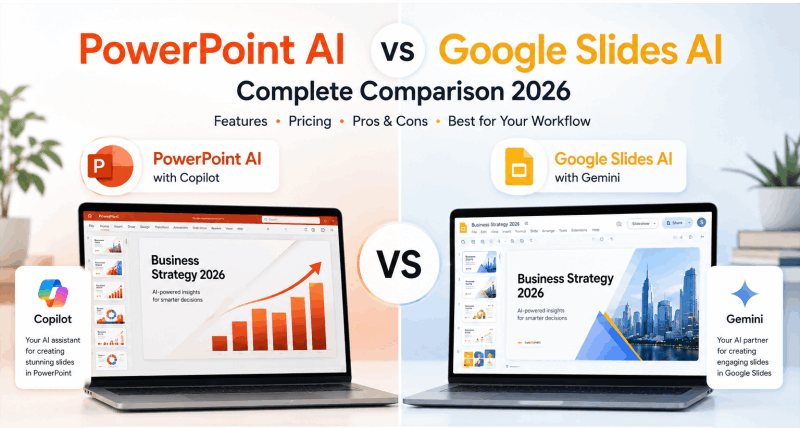
Choosing between PowerPoint AI and a Google Slides AI generator is no longer a simple question of Microsoft versus Google. Both ecosystems have expanded their AI capabilities significantly, and the gap between them shifts depending on what you actually need to build. This guide compares documented drafting workflows, account requirements, and the practical checks that help you choose between them.
What Is Copilot in PowerPoint?
Microsoft Copilot can help create a PowerPoint presentation from a topic or supported source file. Microsoft documents Word-based input and, for eligible work subscriptions, PDF input. Availability depends on the subscription, application version, organizational settings, and relevant Designer permissions.
Copilot also offers workflows for existing presentations, including adding a slide from a referenced file. Some expanded source and multi-file features are in preview or rollout, so do not assume every account has the same controls.
The practical advantage for a Microsoft-based team is working in the editor and file environment it already uses. Access to basic Copilot Chat does not by itself establish access to complete presentation generation.
What Is Gemini in Google Slides?
Google documents complete editable presentation generation in Slides for eligible Google Workspace or Google AI plans and Workspace Experiments participants. The documented workflow is currently on desktop in English.
In a new blank presentation, open Ask Gemini, describe the deck, and use Add sources > Add from Drive when you want supporting files. Review the proposed plan before selecting Approve to generate.
For existing presentations, supported Gemini workflows can reference Drive files with @ mentions and show Sources. Google Docs is a useful source, but the workflow should not be described as universally limited to Docs.
Gemini App Canvas is a separate route that can create slides from uploaded files. Its access conditions and output should not be assumed identical to Gemini inside Slides.
Compare the Drafting Workflows
| Question | Copilot in PowerPoint | Gemini in Google Slides |
|---|---|---|
| Where do you work? | Inside an eligible PowerPoint application | Inside Google Slides; documented full-deck generation is desktop/English |
| Can you start with source material? | Supported file workflows include Word; eligible work plans also support PDF | Use Add from Drive in the documented full-deck workflow |
| Can you work on an existing deck? | Copilot includes existing-presentation tasks and referenced-file slide creation | Gemini includes existing-presentation tasks and Drive references |
| What determines access? | Subscription, application version, rollout, and organization settings | Eligible plan or experiment, device/language conditions, and rollout |
| What needs review? | Source accuracy, omissions, layout, charts, and the final delivery format | |
Feature availability is more useful than a generic feature count. Check the workflow in the account your team will actually use.
Fit the Tool to Your Existing Environment
Microsoft-Based Teams
If your team stores files in OneDrive or SharePoint and edits in PowerPoint, Copilot can fit that established process. Ask your administrator which generation features are licensed and enabled, and which source locations are permitted.
Using an existing provider does not automatically approve every AI workflow. Apply your organization's rules for source data, sharing, and retention.
Google Workspace Teams
If your team already drafts in Docs, stores sources in Drive, and collaborates in Slides, Gemini can fit the same environment. Test source references and the editable output with a representative project.
Both PowerPoint and Google Slides support collaboration. Compare the actual sharing, commenting, version, and access controls your team uses rather than treating one as categorically unsuitable.
Compare the Cost of Eligible Access
| Check | Why it matters |
|---|---|
| Existing subscription | Your organization may already have relevant features or may need a different plan |
| Presentation-generation entitlement | General AI chat access is not necessarily full-deck generation access |
| Usage limits and rollout | Allowances and available workflows can differ between accounts |
| Billing period and region | Monthly and annual offers, taxes, and regional terms affect the total |
| Required export | Free drafting in a third-party tool may not include the file you need |
There is no single add-on price that accurately represents every Microsoft or Google account. Compare the relevant offer with what your team already pays for.
Presenti AI is another option to price: free access has limited AI credits, while Word/PDF/TXT imports and editable PPTX/PDF export are listed on paid plans.
Test the Work That Matters
Use the same brief and source document in each eligible workflow. Include a slide with exact figures, one with a qualification that must survive summarization, and one with a chart or diagram.
- Does the outline preserve the argument and the audience's decision?
- Are figures, labels, and citations traceable to the source?
- Can you make the brand and layout changes you need?
- Does the export remain readable and editable in the destination application?
- How much time is spent preparing, checking, revising, and delivering the deck?
Generated designs and content vary with the task. This article does not report a measured output-quality or speed ranking.
Cloud AI generation requires an appropriate connection. If you will present offline, test the final local file and embedded media beforehand; offline editing or presenting does not imply offline AI generation.
When to Evaluate a Separate Presentation Tool
A separate tool may be useful when you prefer its outline controls, templates, or source-input workflow. It does not need to replace your team's final editing environment.
For example, Presenti supports prompts and several document inputs, including PDF-to-presentation drafting on paid plans. You can review the outline, choose a design, and refine the deck before using a paid PPTX or PDF export.
Compare the cost and file handoff with an in-editor workflow. The guide to free AI slide-deck options explains why drafting access and export access need separate checks.
A Shortlist by Workflow
| Candidate | Reason to evaluate | Key condition |
|---|---|---|
| Copilot in PowerPoint | You want generation within your PowerPoint workflow | Confirm the subscription and application support the required task |
| Gemini in Google Slides | You want Drive-based sources and shared Slides editing | Confirm full-deck eligibility and documented device/language availability |
| Presenti | You want an outline-to-design workflow outside either suite | Confirm input and paid export access, then inspect the handoff |
Frequently Asked Questions
Can I use Google Slides AI for free?
Full-deck generation requires an eligible plan or experiment. A standard Google account alone does not establish access; check the features available to your account.
Is Copilot better than Gemini?
That depends on source handling, editing needs, eligible access, and the team's existing environment. Compare a representative deck instead of a blanket quality claim.
Can Google Slides create a PowerPoint file?
Slides can download presentations as PPTX. Inspect the result in PowerPoint for changed layout, fonts, and object behavior.
Is Presenti a free export alternative?
Presenti offers limited free AI access; editable PPTX and PDF exports are listed on paid plans. For other candidates, see the overview of AI PPT tools.
Choose the Workflow Your Team Can Use
Start with the tools and subscriptions already available, then test the source and delivery requirements of a real deck. Copilot, Gemini, and Presenti all offer drafting routes, but their account conditions and editing environments differ.
To explore Presenti's approach, try its free drafting access and confirm the paid features required for your full workflow.