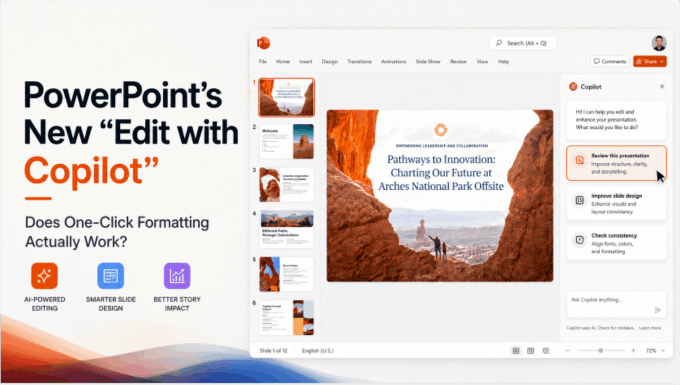
Edit with Copilot can make changes directly in a PowerPoint presentation, including restructuring slides and changing visuals. This guide explains the documented workflow and its review requirements; it is not a hands-on benchmark.
Availability note (checked September 28, 2026): Copilot features vary by Microsoft 365 plan, platform, region, and rollout wave. Verify the current behavior in Microsoft's Edit with Copilot documentation before relying on a feature described here.
What Is “Edit with Copilot”?
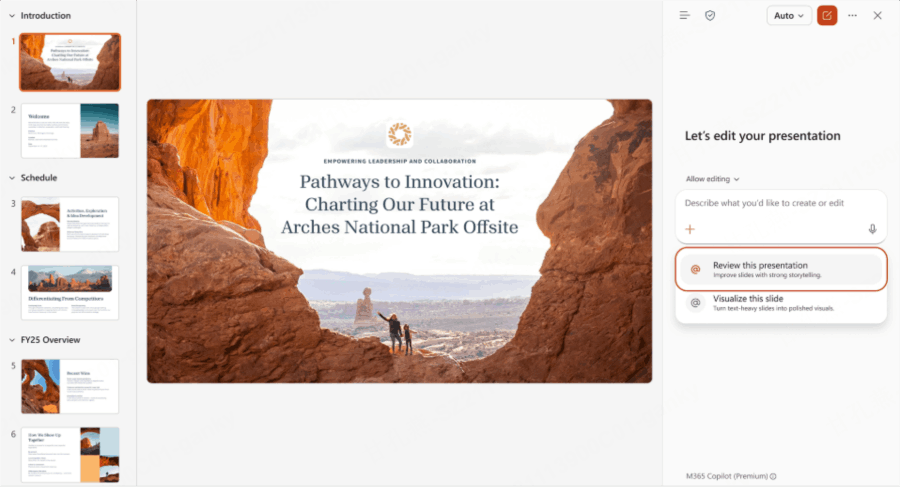
Edit with Copilot is a mode inside Microsoft 365 Copilot that goes beyond the older chat-and-suggest experience. Instead of just answering questions about your deck, it makes changes directly on the canvas — reformatting slides, restructuring content, and applying design updates based on a natural-language request you type into the Copilot panel.
Availability depends on your account, platform, organization settings, and feature rollout. Enterprise Brand kit access has additional licensing and setup requirements; it is not a prerequisite for every editing task.
To use it, you open the Copilot pane, describe what you want changed, and Copilot executes the change directly in the file rather than just describing what you could do yourself.
What It Can Actually Do
Microsoft documents direct slide editing, built-in skills, and enterprise brand-related tasks. Examples include:
- Template reformatting. Ask Copilot to adapt colors, fonts, and layouts to your corporate template, then review each slide for exceptions.
- Brand Kit integration. If your organization has a Copilot Brand Kit or an Organization Asset Library set up, Copilot can pull logos and approved imagery directly from it and apply them consistently across slides.
- Brand review assistance. Ask Copilot to compare the deck with company guidelines; treat the response as suggestions to inspect, not formal approval.
- Built-in one-click “skills.” Rather than writing a full prompt every time, PowerPoint now includes pre-set commands for common actions — a faster path for repetitive formatting tasks.
- Grounded, multi-step reasoning. Copilot can pull context from your existing files, web content, and the deck itself, planning and executing several steps in sequence rather than making one isolated edit.
For an organization that already has its brand assets and templates set up inside Microsoft 365, this is a genuinely capable toolset — the kind of standardization work that used to mean opening a template guide and manually checking every slide.
Where the “One-Click” Framing Breaks Down
A few things are worth knowing before you expect this to be fully hands-off:
It requires review, by design. Microsoft’s own guidance frames this clearly: you describe the task, Copilot executes it, and you review the result. It’s explicitly not a “trust it blindly” workflow — the more accurate mental model is a capable assistant making direct edits that still need a human check before you present.
Brand-aware work needs brand material. A configured enterprise Brand kit gives Copilot logos, imagery, and guidelines to use. Ordinary content edits do not require the same preparation, and an AI brand check does not replace an organization’s approval process.
It’s tied to the Microsoft 365 ecosystem and a Copilot license. This isn’t a standalone tool — you need an eligible Microsoft 365 plan with Copilot access, and for the brand-aware features specifically, an organization that has already invested in setting up templates and asset libraries. For an individual or a small team without that infrastructure, there’s real setup overhead before the “one prompt, full reformat” experience works as advertised.
Copilot also offers document-based creation. PowerPoint’s separate create-from-file workflow can generate a presentation from supported source files. Do not confuse that capability with a specific editing mode; the available file-reference options can differ by version and rollout. If your material is already organized in Copilot Notebooks, the notebook-to-PowerPoint workflow is another source-led route to check separately from editing the open deck.
How This Compares to Generating a Deck From a Document
This is where the comparison gets genuinely interesting rather than one-sided. Edit with Copilot and a tool like Presenti AI are solving adjacent but different problems.
For a team already using PowerPoint and Microsoft 365, keeping editing and approved brand material in that environment may be convenient. Ask for a specific change, then inspect the result against the source content and your brand rules.
Presenti offers a browser workflow from an outline or supported source file without a Microsoft 365 Copilot license. Its own plan requirements still apply: Word/PDF/TXT input and editable PPTX/PDF export are paid features. Compare the outline and editing effort using the same brief.
A team can draft in one tool and finish in PowerPoint, provided the exported file supports the required edits. Review the handoff before adopting the process for a client or recurring report.
Presenti Isn’t Just a Starting Point Anymore
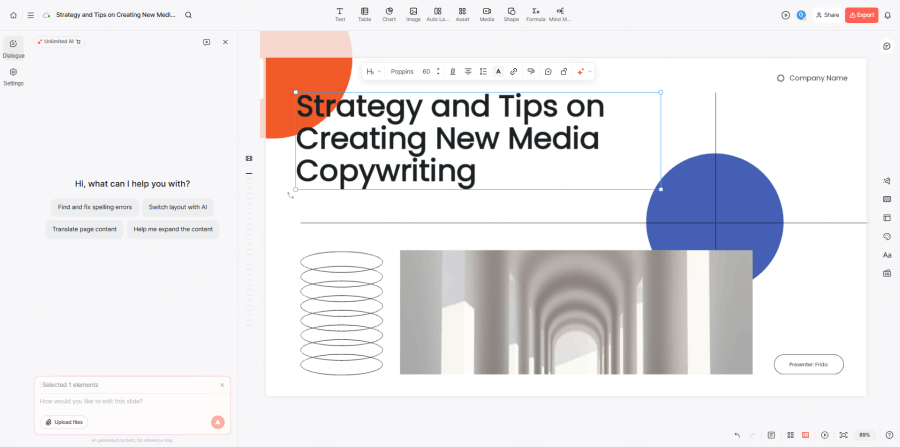
Presenti also provides AI editing alongside generation. Its AI presentation workflow can be evaluated for revising a slide after the first draft.
After generation, try the changes your project needs in the current editor. The following are useful tasks to evaluate; the screenshot does not establish that every shortcut or selection behavior is available in every account:
- Quick-action shortcuts for common fixes — finding and correcting spelling errors, translating a page’s content into another language, or expanding thin content into fuller slides — available as one-click suggestions rather than requiring a typed prompt every time
- Layout switching via AI, where you can ask the agent to restyle a slide’s structure without rebuilding it manually
- Scope of an edit. Test whether a request changes only the intended object or slide.
- Reference material. Check how the current editor accepts the document or image you need for a revision.
- AI-generated image replacement, swapping out a placeholder or existing image based on a described request rather than a manual re-upload
Both products cover drafting and subsequent editing. Compare an ordinary revision, such as shortening a title without changing its meaning or replacing an image while keeping its caption, rather than assuming that one tool only generates and the other only edits.
Enterprise brand controls are a separate requirement from general AI editing. If approved assets and company guidelines drive the decision, evaluate those controls with the person responsible for the brand.
Who Should Use Which
Consider Copilot when your team already edits in PowerPoint, has eligible access, and benefits from its organization’s templates and brand assets. Check the resulting edits before approving the deck.
Consider Presenti when you want to draft from an outline or supported document in a browser and its plan covers your output needs. Compare both the generated structure and the work needed to revise it.
Frequently Asked Questions
Is this the same as ordinary Copilot chat? The relevant distinction is whether editing is enabled: Copilot can apply changes to the presentation, rather than only describe suggested changes in a chat response.
Do I need a specific Microsoft 365 plan? You need eligible Copilot access for the workflow. Check the current feature documentation and your organization’s settings; enterprise Brand kit features have additional requirements.
Can Copilot build a deck from a document? Yes, PowerPoint documents a create-from-file workflow. Available source types and file-reference controls depend on the workflow and rollout; this should not be reduced to a claim that Copilot only reformats existing slides.
Does Edit with Copilot make changes automatically without me checking them? No. Microsoft’s own guidance is explicit that this is a review-required workflow — Copilot executes the requested change directly in the file, but you’re expected to check the result before treating it as final.
Conclusion
Choose a concrete edit to evaluate: revise the wording, restructure a section, or apply an approved template. A useful result preserves the meaning and remains easy to review. A brand-compliance prompt can help find inconsistencies, but the final decision still belongs to the team.
For a source document, compare the available creation workflows in Copilot and Presenti using the same content. For an existing deck, focus on the revisions and delivery format you need.