To record a PowerPoint presentation, open the desktop app, choose the slide where you want to start, and use Record to capture your narration and slide timings. Save the editable presentation, then export a video if the audience needs a file they can watch without opening PowerPoint. Record a short sample before committing to the whole talk: it is much easier to fix the wrong microphone after twenty seconds than after twenty minutes.
The recording needs to work without you in the room. Prepare short speaker notes for each slide, including the point to explain and the sentence that leads into the next slide. A slide full of text is not a ready-made narration script.
This guide focuses on desktop PowerPoint and uses a three-slide induction lesson as a running example. The goal is a replayable explanation, with a clean route for replacing one weak section without rebuilding the entire talk.
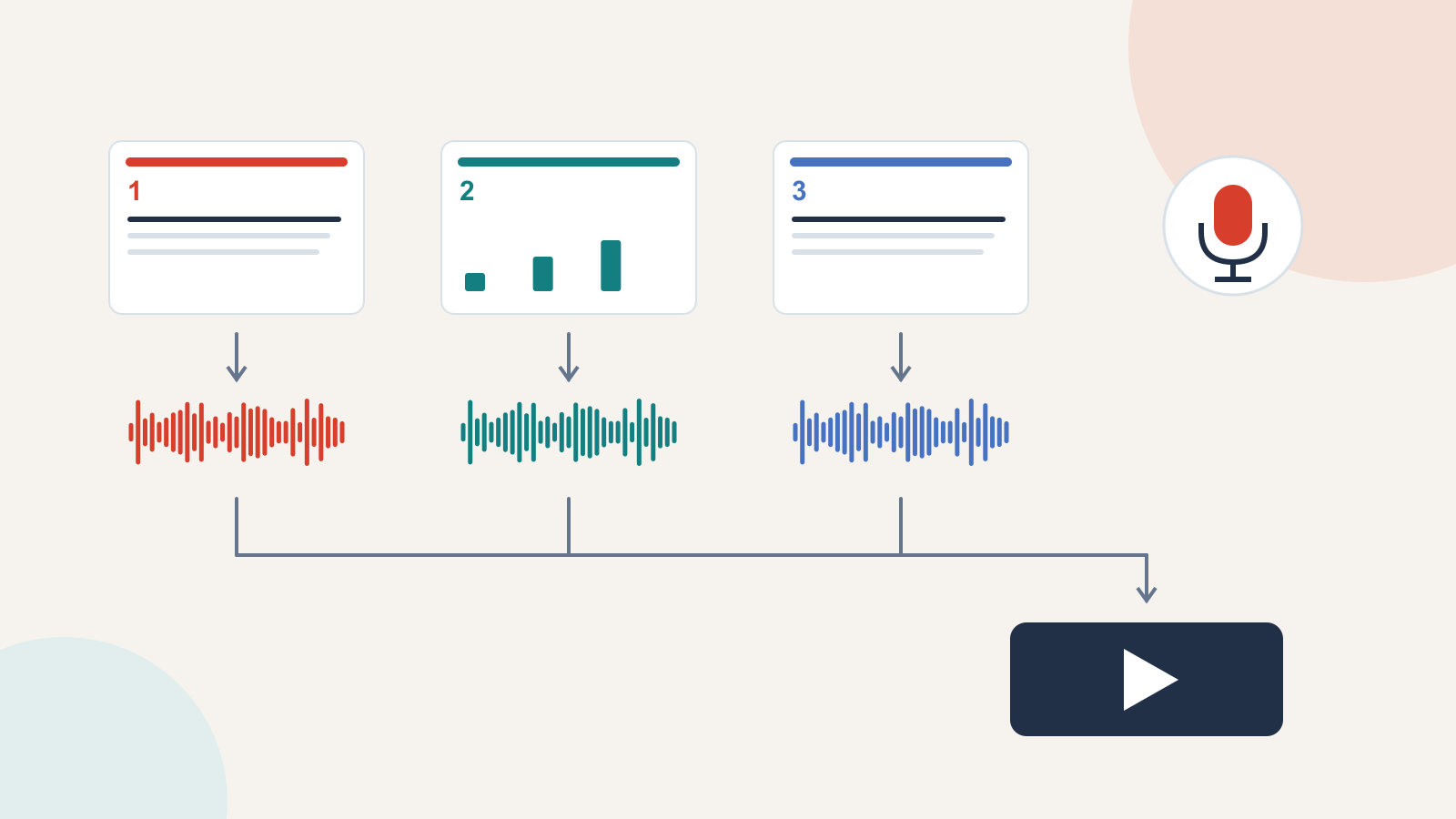
Choose the file your audience needs
Keep an editable PPTX as your working source. A video is a separate delivery copy: convenient to watch, but it does not give the viewer editable slide objects. Changing the source later does not update a video you have already sent.
| Audience need | Delivery choice | What to establish before recording |
|---|---|---|
| Watch the explanation in a browser or video player | An exported video, commonly MP4 | The upload limit and supported video format of the destination |
| Edit the slides or replace narration later | The source PPTX, shared through the agreed working location | Who owns the final version and who may change it |
| Read the content without audio | A readable companion or transcript alongside the recording | Whether instructions, dates and links can be understood without hearing them |
For the example, new staff need a short video about submitting a maintenance request. The trainer also keeps the PPTX because the contact details may change. The video includes only fictional request information; real customer records are unnecessary for explaining the process.
Make the narration explain what the slide leaves out
A recorded audience cannot interrupt when a phrase is unclear. Give them the context needed to act, but avoid reading every label aloud. Use the slide for the key idea and the narration for an example, a reason or a boundary.
| Slide | Visible message | Spoken explanation |
|---|---|---|
| 1. Describe the problem | Location · equipment · what happened | “Write ‘printer on floor two shows a paper-jam warning,’ rather than ‘printer broken.’ The location and the message give the receiving team a useful starting point.” |
| 2. Choose the next step | Routine request or urgent concern? | “A routine request can follow the normal queue. For an urgent concern, use the separate contact route provided in your team's current instructions. Do not wait for this example form to be reviewed.” |
| 3. Keep the reference | Save the reference and follow the reply | “Keep the request reference so you can follow the same conversation. If new information changes the situation, add it through the agreed route rather than assuming somebody has seen it.” |
This is a sample lesson structure, not a workplace safety procedure. Replace its contact routes with your organization's actual instructions before using it for training. The distinction belongs next to the example because it changes what a learner should do.
Read the explanation aloud once. Replace phrases that make you stumble, remove repeated context and expand unexplained abbreviations. If the slide is missing a key sentence, edit it before recording. When you are starting with written instructions, you can turn the outline into an editable slide draft with Presenti, then finish the narration and recording in PowerPoint. This is a drafting step; Presenti is not the recorder in this workflow.
Record and replay one short sample
Use the microphone and room you intend to use for the full recording. Put the microphone in a stable position, silence notifications and close anything likely to produce an audible alert. If you include your camera, leave the face area clear of important slide labels.
In PowerPoint, open the starting slide and select Record. Start with the red recording control, wait for the countdown and speak. Stop and replay the sample before continuing. Microsoft's recording guide explains the controls and notes that narration is not captured during a slide transition. Finish the sentence, change slides, and resume when the next slide is ready.
Listen through the whole sample rather than merely checking that an audio indicator exists. Can you hear the first word? Is the speech much quieter than another video on the same device? Does a fan, keyboard or headset cable dominate the sound? If there is no voice, select the intended microphone and check its operating-system permission before making a second short sample.
The exact recording view varies by desktop version. Microsoft's version-specific recording instructions cover voice, slide timings and available camera or annotation options. If your screen differs, follow the section for your installed version; do not assume that a browser tab has all the same recording controls.
Fix one slide without starting the talk again
Suppose the first and third slides sound clear, but slide two includes a long hesitation and the old contact route. The problem is local. Correct slide two's text and spoken cues, then record that slide again instead of discarding the good sections.
- Save a separate working copy before replacing recorded material.
- Navigate to the slide that needs a new take.
- Use the current-slide recording or clearing option available in your version. Check the scope carefully: clearing all slides is a different operation.
- Record the revised explanation and replay it.
- Listen from the end of the previous slide into the new take, then into the following slide.
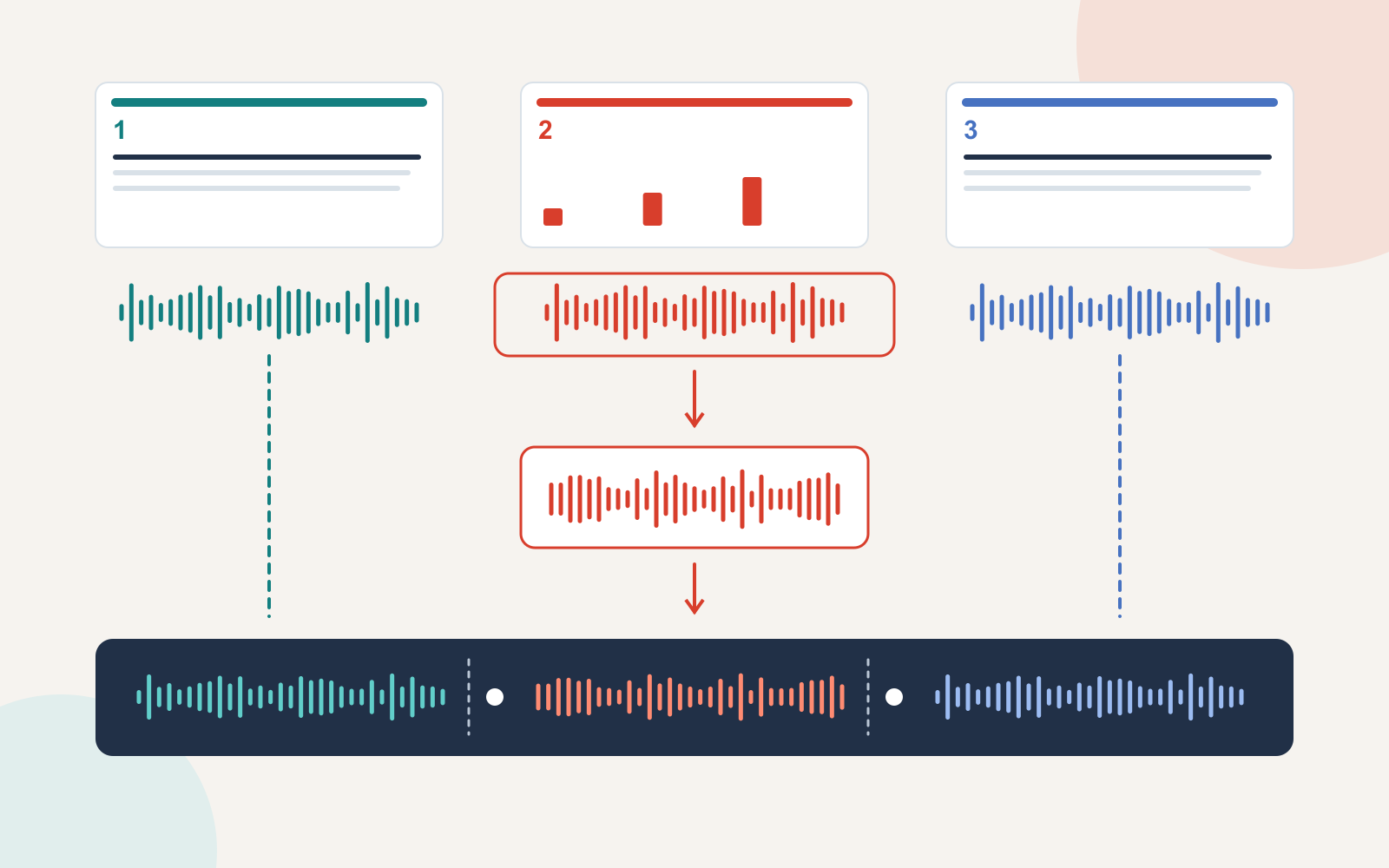
The joins matter. A new take may be correct on its own yet repeat the last sentence of the preceding slide or end halfway through the lead-in to the next one. Record complete thoughts on each slide so later changes do not leave dependent half-sentences behind.
For the induction example, slide one can finish with “Now choose the appropriate route.” Slide two starts by naming that choice; it does not begin “And the other thing…” The third slide can then stand on its own as an instruction about keeping the reference.
Export with the recorded narration and timings
On Windows desktop PowerPoint, save the PPTX, then use File → Export → Create a Video. Select a suitable video quality and use the recorded timings and narrations when those are what you want in the output. Create the video and wait for export to finish. Microsoft documents this route in Turn your presentation into a video.
On supported Mac desktop versions, use File → Export, select an available video format and check the option to use recorded timings and narrations. The Mac export documentation includes version requirements and warns that embedded media can behave differently from narrated audio during video export. If the deck contains a separate video clip, verify it in the exported file rather than assuming it will play.
Choose a resolution that leaves the slide text readable at the audience's expected viewing size. Raising the resolution will not fix tiny labels or crowded slides. For a short internal lesson, make a sample export and check both readability and file size before deciding on the full recording's settings.
Find the problem in the right file
| What you notice | First useful distinction | Next action |
|---|---|---|
| The video is silent | Is the narration also silent when replayed in the PPTX? | If yes, check the microphone and recording. If no, inspect the export's narration option and the video's playback volume. |
| Slides advance before the explanation ends | Does the source recording have the right duration? | Replay the affected slide. Correct its timing or take, then export using the recorded timings. |
| A word disappears at a slide change | Was it spoken during the transition? | Retake the affected passage with a pause around the slide change. |
| An old sentence remains in the shared video | Was the PPTX updated but the video left unchanged? | Export again and replace the intended delivery copy; confirm the shared link points to that copy. |
| The uploaded video is hard to read | Is the local video clear at the same viewing size? | If the local version is also unclear, simplify the slide. If only the uploaded version is poor, inspect the hosting platform's playback quality and processing state. |
Before sending the link, watch the actual delivery file from beginning to end at ordinary speed. Listen for missing words, inspect the smallest important label and follow any written next step. A preview inside the authoring app cannot show a wrong uploaded file or a restricted sharing link.
Keep the source deck, the final video and any transcript together with a clear version name. When the underlying instruction changes, update the source and replace the recording deliberately. The useful result is an explanation people can replay and act on—not merely a file with sound attached.