There are three practical ways to turn Word content into PowerPoint: import a styled outline, convert the file, or ask AI to create a shorter slide draft. Choose by what you need to preserve. Outline import keeps a text hierarchy; file conversion aims to carry content into another format; AI drafting can change the structure and wording.
1. Why Convert Word to PowerPoint?
Word documents contain rich text, paragraphs, and detailed descriptions, perfect for writing and reading. However, presentations demand visual hierarchy, clear structure, and concise information. Converting Word to PPT allows you to:
- Present complex information visually
- Improve clarity and audience engagement
- Save time by reusing existing content
- Enhance communication efficiency in meetings, speeches, and reports
For an AI-generated outline from the source document, Word-to-presentation drafting is the relevant route. If you must keep the wording unchanged, start with outline import or manual slide construction.
2. Three Ways to Convert Word to PowerPoint
Three common approaches are outline import in desktop PowerPoint, a file-conversion service, and an AI presentation tool. Cost and availability depend on the software and plan; none should be assumed to provide unrestricted free conversion.
Method 1: Import a Word Outline into Desktop PowerPoint
Desktop PowerPoint can import a styled Word outline. Microsoft’s outline-import guide explains the Windows and Mac routes; the web app does not offer this command. The input is a heading-based text structure, not a request to recreate the Word page layout.
How to use it:
- In Word, apply Heading 1 to each intended slide title and Heading 2 to the points beneath it.
- Save and close the Word file.
- In desktop PowerPoint for Windows, choose Home → New Slide → Slides from Outline.
- Select the Word outline and insert it.
Review the imported titles and points, then add images, charts, and layouts separately.
Use this when: Your wording and slide order are already decided, and you have a desktop PowerPoint license. You can work from local files and keep control of the text.
What it leaves to you: Images, tables, charts and slide design need separate attention. A long Heading 2 paragraph will still be long when it becomes slide text.
For platform-specific setup and a worked outline, follow the Windows and Mac outline-import tutorial.
Method 2: Check an Online Conversion Service
A file converter may be useful when your priority is a format change. Identify the exact input/output pair first: some services accept Word directly, while others require a PDF between Word and PowerPoint.
These are different routes, not interchangeable upload buttons:
- Smallpdf Word-to-PDF followed by its PDF-to-PowerPoint tool: a two-step route.
- iLovePDF Word-to-PDF followed by PDF-to-PowerPoint: also a two-step route.
- Convertio DOCX-to-PPT: a listed direct file-pair route. Check whether its output format meets the recipient’s requirement.
- HiPDF PDF-to-PPT: save a PDF copy from Word first if using this specific converter.
How it works:
- Check that the service supports your intended Word-to-PowerPoint conversion path
- Upload the input format that the chosen route actually accepts; for a PDF-to-PPT tool, this is the PDF copy, not the Word original
- Wait for automatic conversion
- Download the selected PowerPoint format and open it in the recipient’s editor
- Adjust layout or apply a PPT template if necessary
Advantages
Browser-based access avoids installing a separate converter. It does not guarantee that paragraphs, charts or page breaks will become the slide objects you want.
Limitations
– Possible file upload size limits
– Some platforms restrict daily conversions
– Privacy concerns for sensitive documents
– Layout accuracy varies across tools
Method 3: AI Tools That Convert and Design PPT Automatically
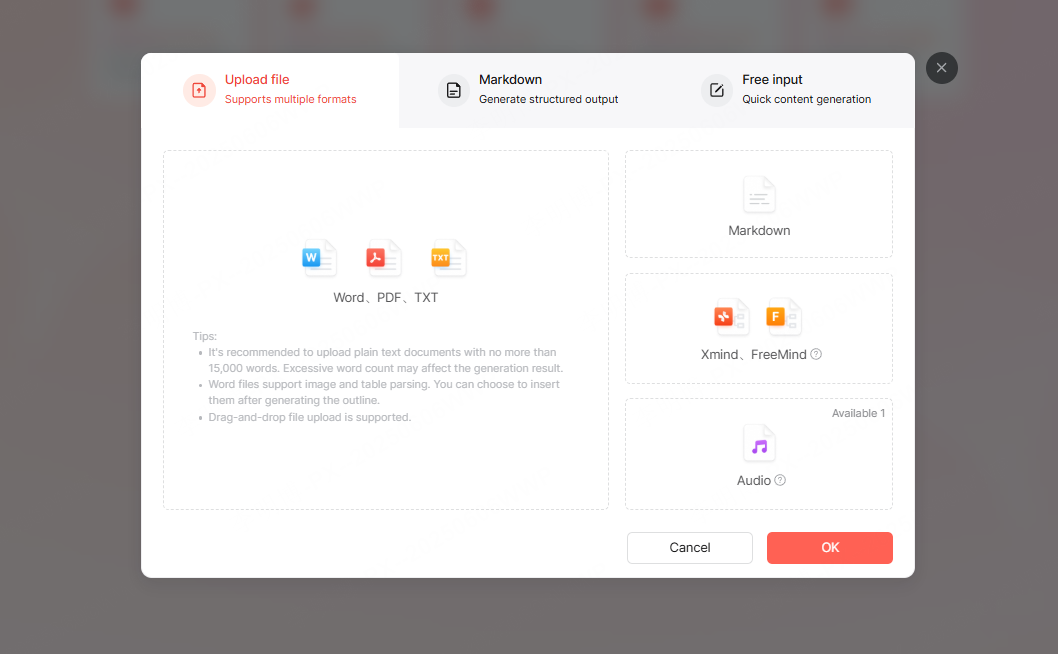
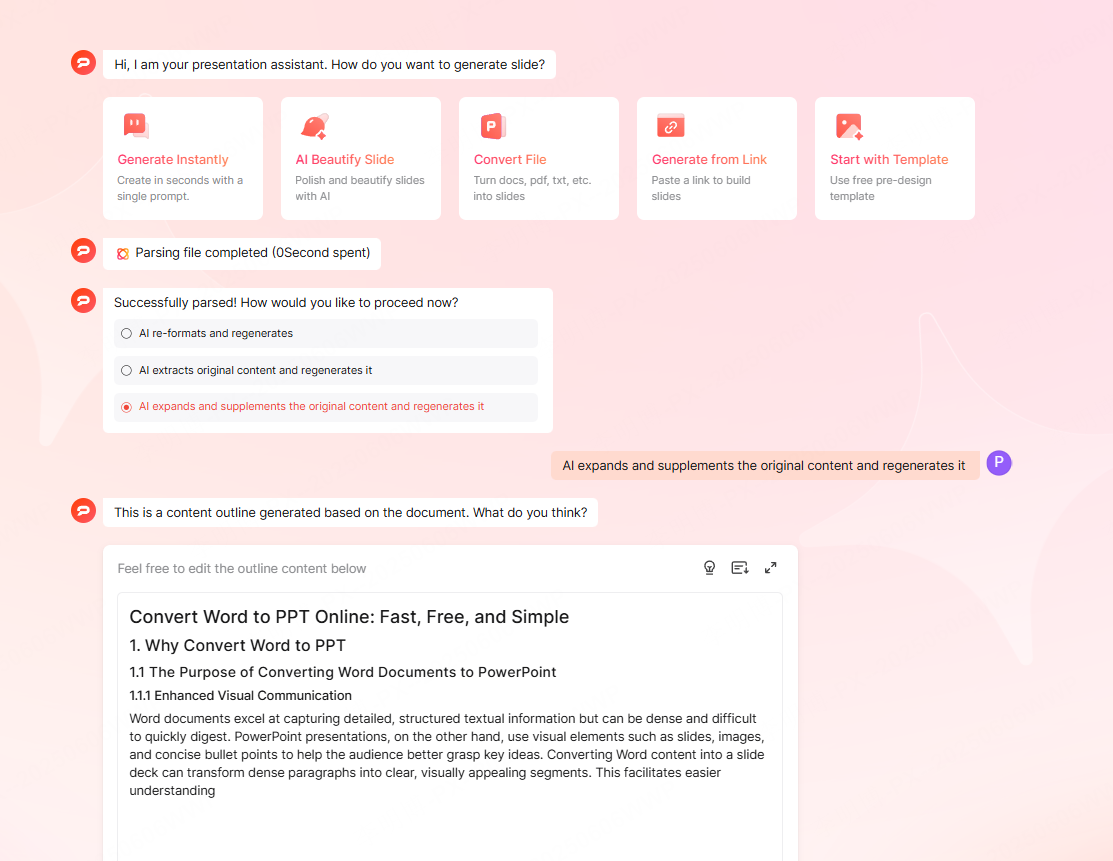
An AI presentation tool can summarize a document and propose a new slide structure. This is a rewriting workflow, so compare the draft with the source to catch omissions, invented details, or changes in meaning.
Typical workflow:
- Open an AI presentation tool
- Choose the supported document-import route in the selected tool
- Upload your file
- AI analyzes headings, content structure, and key ideas
- Review the proposed outline, generate the draft and edit any content or layout that does not fit the task
What AI adds: A proposed narrative and draft layout. This can help when the report is much longer than the talk, but it changes the review task: you must check meaning as well as appearance.
For example, a report paragraph listing a finding, a caveat and a next step should not become a slide that shows only the finding. Put must-keep caveats into the brief and check the generated outline before approving the design.
Choose AI when you want help restructuring the content and can review the resulting draft.
3. Step by Step Word to PPT Conversion Guide
Prepare the source, choose a route and inspect the result in this order:
Step 1: Prepare a Well Structured Word Document
Before converting, apply consistent Word styles:
- Heading 1 for intended slide titles
- Heading 2 for the points on each slide
- Use deeper headings sparingly and check how they import
- Keep full explanations in the source document or speaker notes
Set aside material that needs separate treatment on a slide:
- Overly complex tables
- Special decorative symbols
- Unnecessary formatting
Keep a copy of the complete original before simplifying the input. Move a dense table into a separate working sheet or appendix when needed; do not discard evidence just because it does not fit a slide.
Step 2: Select a Conversion Method
- If the document already has the required message and structure → Compare file-conversion routes and inspect a sample output
- If you have a supported desktop PowerPoint version → Try outline import
- If you want a summarized draft → Try an AI presentation tool and review it against the source
Step 3: Beautify and Finalize the PPT
After conversion, improve the presentation by:
- Adjusting font size and spacing
- Applying a consistent color theme
- Adding icons, images, or diagrams
- Ensuring logical flow and readable formatting
- Reviewing text accuracy
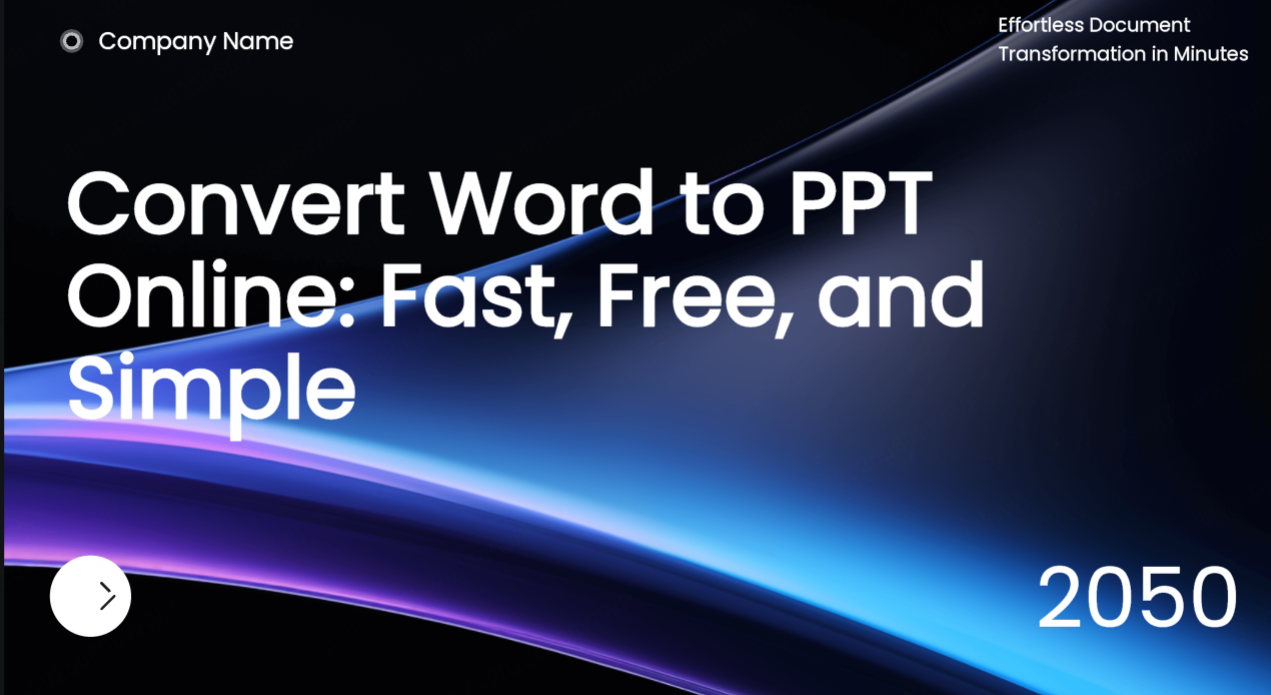
Open the file in the application your audience or colleagues will use, then inspect line breaks, labels and any elements that became difficult to edit.
One report, three different preparations. In this fictional example, a project memo says: “The pilot cost $12,000 against an approved $15,000 budget. Two teams participated. The support workload was not measured.” The slide task is to brief a manager on what the pilot established.
| Method | Prepare this input | Check this outcome |
|---|---|---|
| Outline import | Heading 1: Pilot spending stayed within the approved budget. Heading 2: $12,000 actual / $15,000 approved; two teams; support workload not measured. | Titles and supporting text imported; no inferred savings or ROI |
| File conversion | The original Word file or required PDF copy | The cost figures and caveat remain visible and editable where needed |
| AI draft | Ask for a short manager briefing and list the cost figures and missing workload measure as must-keep facts | The slide does not turn “within budget” into “profitable” or omit the unknown workload |
This example illustrates the choice of method, not a measured result from any service. If cost is the deciding constraint, compare Word-to-PowerPoint routes available without buying a separate converter before signing up.
4. Tips and Precautions for Better Conversion Results
1. Clean and structure your Word file first
Consistent heading styles make the intended hierarchy explicit. Inspect the imported titles and supporting points rather than assuming the conversion interpreted every level correctly.
2. Choose the right tool for the scenario
Use outline import when you want a simple text structure, a converter when file-format conversion is the priority, or AI when you want help condensing the document. Check editing and export access before choosing.
3. Review and optimize after conversion
Check for layout errors, missing elements, or truncated text. Uniform design improves professionalism.
Conclusion
The best method depends on what you need to preserve. Outline import works from heading levels; conversion services transform files; AI tools may summarize and reorganize the content. Check important figures, charts, citations, and slide order against the Word document before sharing the result.