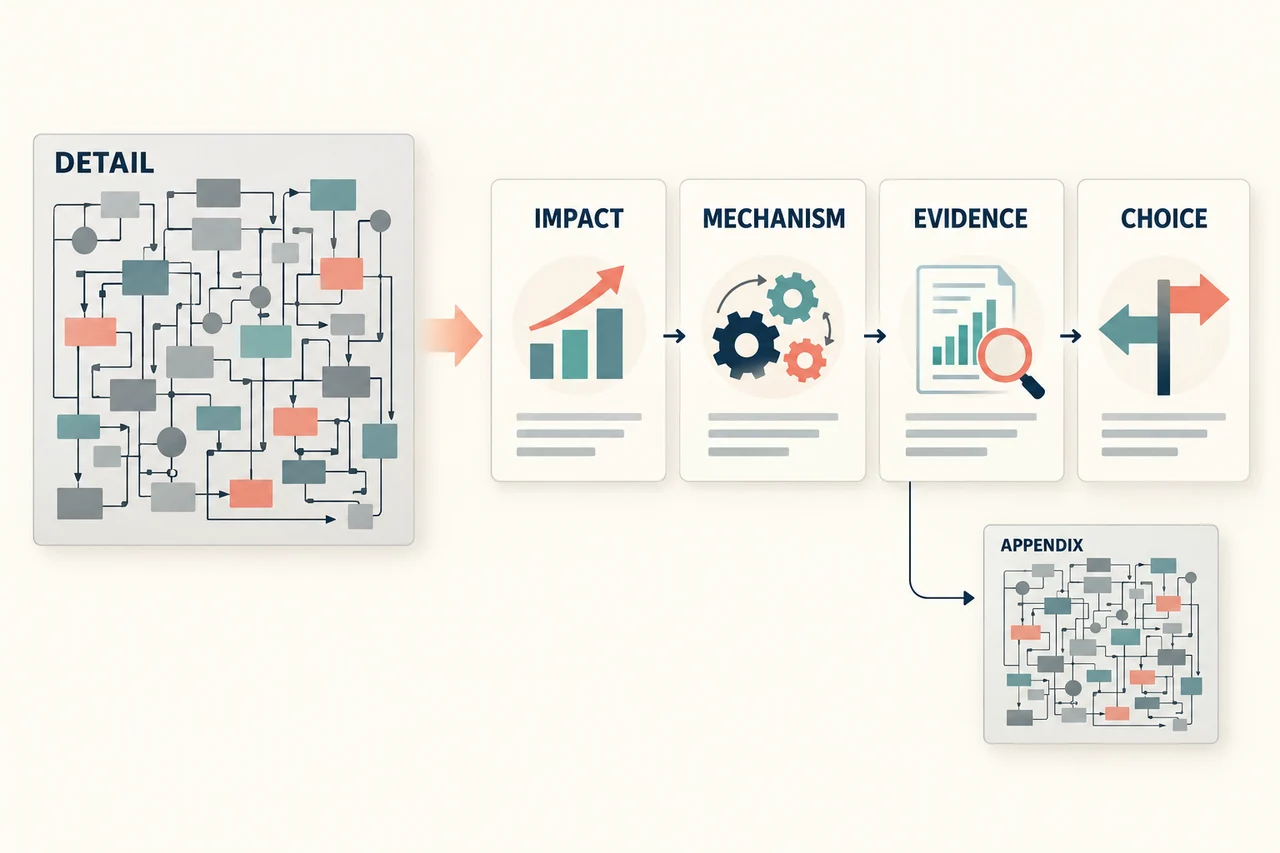
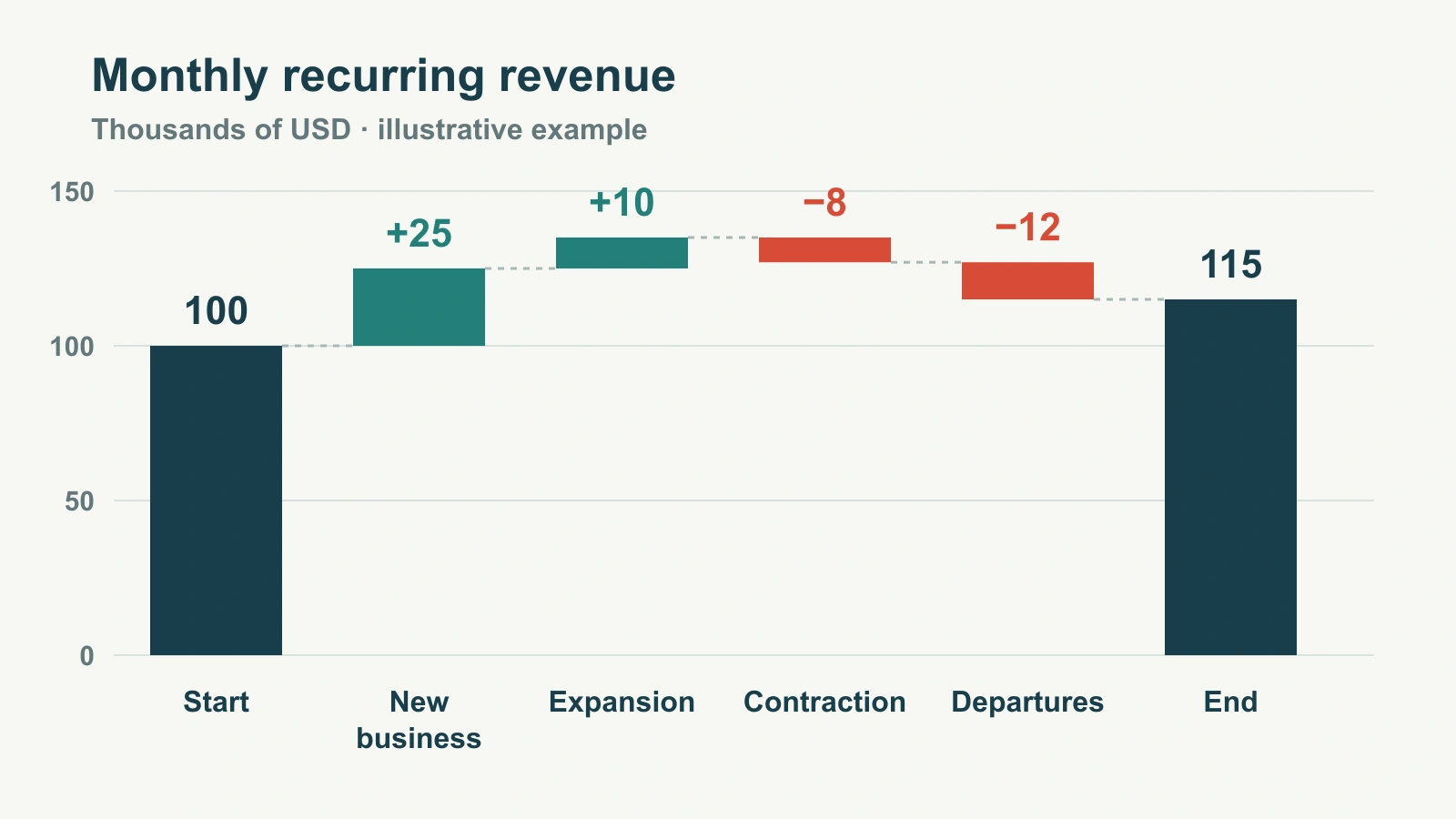
To combine PowerPoint presentations, choose one destination deck, bring in the slides you need from the other files, and then reconcile their order and formatting. Simply joining the files often leaves several opening slides, repeated explanations and an unclear ending. The useful result is one presentation that answers the audience's question.
If you need the insertion commands, this guide to copying slides between presentations covers the mechanics. Here, the focus is what happens around that step: deciding what belongs, preserving the meaning of the material and turning several contributors' decks into one clear sequence.
Choose the destination before importing slides
Save a separate working deck and keep the source files intact. Give one person responsibility for assembling the final version. Contributors can still correct their material, but those changes need to reach the assembler before the shared copy is released.
Write one sentence describing the final deck's job. For example: “Help the customer choose the next rollout step and agree who will own it.” That sentence is more useful than “combine Sales, Operations and Support,” because it provides a reason to keep or remove a slide.
Decide the slide size at this point. PowerPoint uses one size and orientation throughout a presentation. Its Design → Slide Size controls include standard and widescreen formats; Microsoft's slide-size guidance explains the options. A source deck with different proportions needs inspection after it is brought across. Resizing with Maximize can move content outside the slide, while Ensure Fit can make it smaller.
Ask contributors for their editable source files and any media or evidence those files depend on. A picture of a chart is sufficient only if nobody needs to change its labels or values. A linked video is useful only if the presentation environment can reach it. Make these decisions before you discover a missing asset during the meeting.
Bring in selected slides, with a deliberate theme choice
In Windows desktop PowerPoint, the Reuse Slides command sits under the arrow beside Home → New Slide. Choose a local presentation and insert the slides you want. Microsoft's Reuse Slides instructions state that imported slides are copies: editing them does not change the source. The same documentation covers Mac, where the reuse route imports the selected deck's slides together. It also notes that reuse from cloud files is deprecated; download an authorized local copy when that is your source.
For a small selection, copying slide thumbnails between open presentations may be simpler. PowerPoint offers two relevant choices: Use Destination Theme and Keep Source Formatting. Microsoft describes both in its copy-and-paste guide. Choose based on what must remain meaningful, not just which result looks neater at first glance.
| Approach | Useful when | What still needs attention |
|---|---|---|
| Use the destination theme | The deck should read as one organization's presentation, with a consistent visual hierarchy. | Inspect font changes, line breaks and colors. A chart's category colors may carry meaning that the surrounding theme does not know. |
| Keep source formatting | A contributor's visual system, technical diagram or required branded section needs to remain recognizable. | Different layouts can still feel abrupt. Align section introductions, explain changes in visual conventions and remove redundant opening slides. |
Neither choice is a promise that every object will look or behave exactly as before. Start with one representative slide containing a chart, a dense label or media. Resolve its problems before moving a large group of similar slides.
Worked example: three decks become eight useful slides
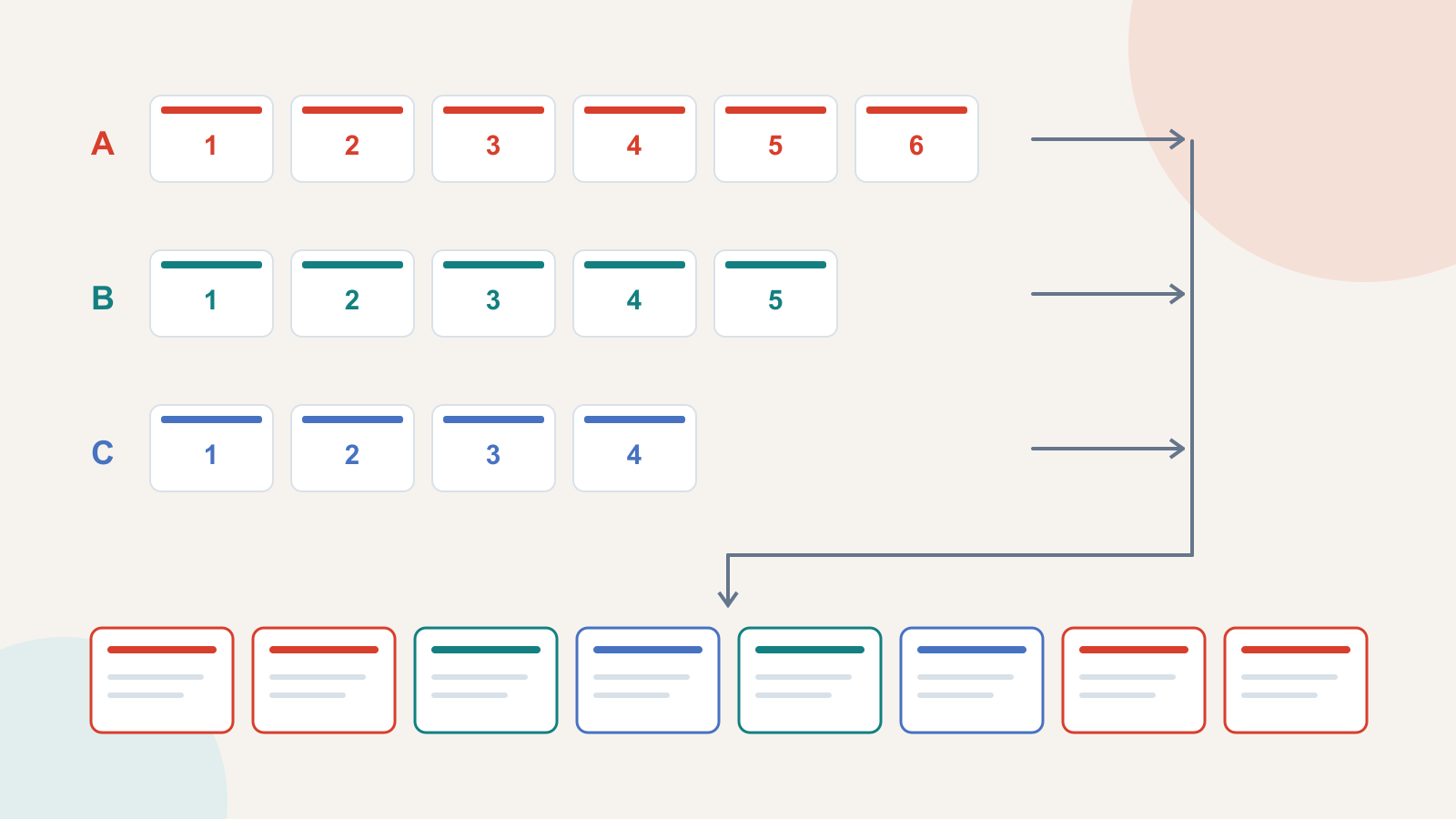
Consider a fictional customer rollout review. Sales supplies six slides, Operations five and Support four. There are fifteen slides in total, but the audience has one decision to make. Preserve the source slide numbers while you plan the combined deck; they make it easy to find an original chart or send a precise correction request.
Label the source decks A, B and C. The proposed destination takes material from all three, rather than placing one complete deck after another.
| Final slide | Source | Role in the combined presentation |
|---|---|---|
| 1 | A1 — Sales | State the rollout decision this meeting needs to make. |
| 2 | A3 — Sales | Establish the customer goal the rollout must serve. |
| 3 | B2 — Operations | Show the usage evidence relevant to that goal. |
| 4 | C2 — Support | Explain the recurring obstacle behind the support discussion. |
| 5 | B4 — Operations | Present the proposed fix and its place in the rollout. |
| 6 | C4 — Support | Name the owners of the actions just proposed. |
| 7 | A5 — Sales | Compare the rollout options the customer can choose. |
| 8 | A6 — Sales | Ask for the decision and agree when it will be reviewed. |
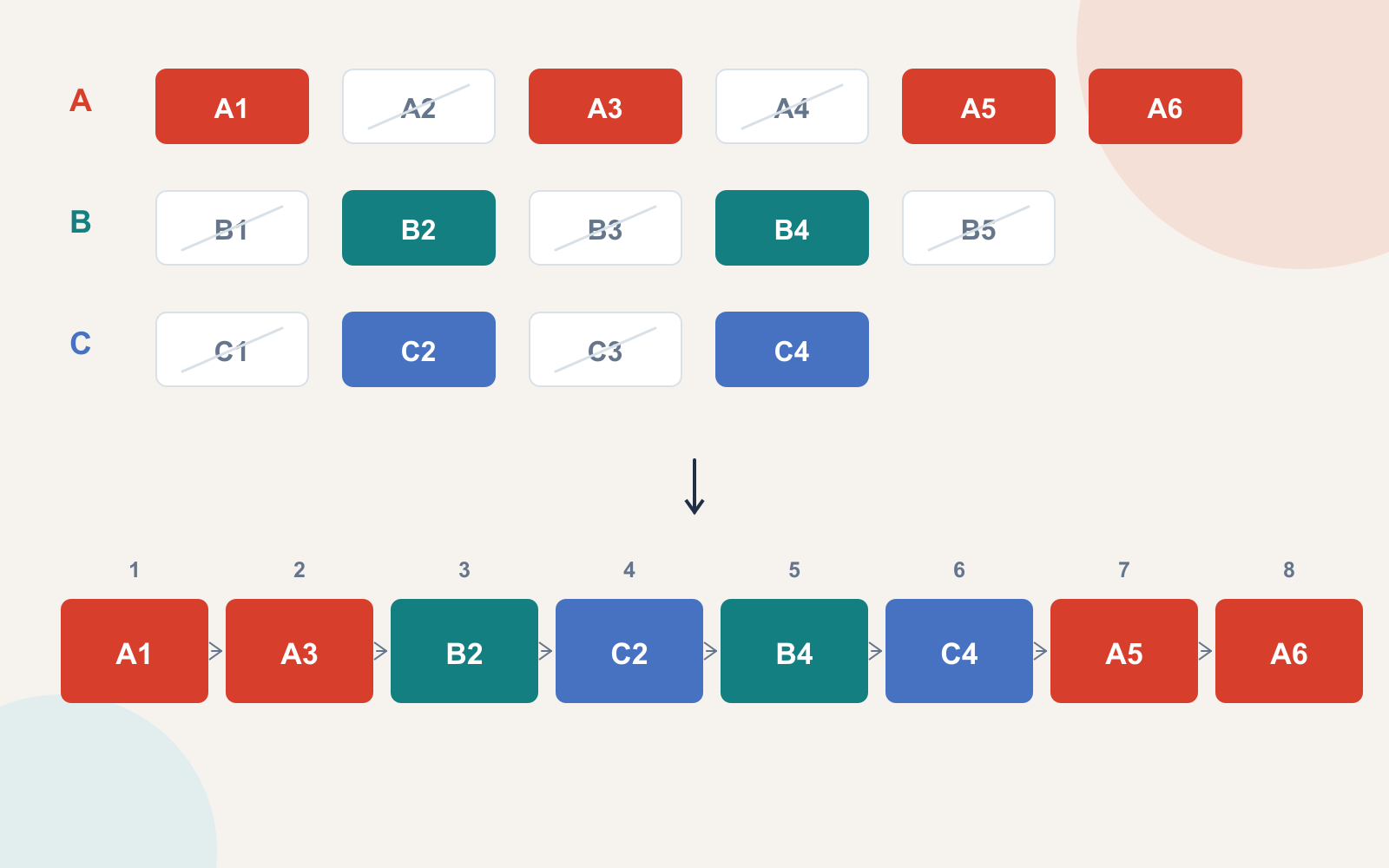
Seven slides leave the main sequence: A2 is a company introduction the customer already knows; A4 and B3 are separate agendas; B1 and C1 introduce teams already in the room; B5 is a separate closing slide; and C3 repeats the support issue now covered on slide 4. Keep the original decks. Removing these slides from the talk does not require destroying their source material.
The eight-slide count is a result of these decisions, not a recommended size for every combined presentation. If the evidence needs a separate limitation or a second comparison, give it room. If a removed slide contains the only citation for a claim you retained, carry that citation forward with the claim.
Rewrite the joins between contributors
The first sentence after an imported section often exposes the old structure. “Now I will tell you about Support” makes sense in a standalone support deck, but it interrupts a conversation about the customer's rollout.
In the example, slide 3 can end with: “The usage view tells us where to look; the recurring support issue helps us understand what is getting in the way.” Slide 4 can then explain that issue without restarting the meeting. The presenter must still distinguish an observed pattern from a proven cause: a support report alone does not establish why every user stopped.
The next join also needs a specific purpose. After showing the proposed fix on slide 5, say: “This plan needs an owner for each action before we choose the rollout option.” That gives slide 6 a reason to exist. A generic “Next slide, please” would leave the audience to infer the connection.
Assign a presenter to each destination slide, not just to each original file. Someone may now speak twice because the evidence is organized around the decision. If several people will deliver the deck, use a shared plan for presenter handovers so they know the cue, the next point and who advances the slides.
Preserve the meaning of charts, sources and labels
Imported material can become misleading without a factual sentence changing. A chart may use blue for the current period while another uses blue for the previous one. Two slides may both say “active users” but count different behaviors. A footer may disappear even though it was the only place naming the reporting period.
Resolve these conflicts explicitly. Either use a consistent definition and legend throughout, or state the difference beside the affected comparison. Do not remove a source note merely to make a slide match the destination layout.
Keep a small assembly record alongside the deck. It does not need to become a slide or a public caption. Its purpose is to make corrections and ownership traceable.
| Final slide | Original file and slide | Change made | Evidence or asset to retain | Owner |
|---|---|---|---|---|
| 3 | Operations.pptx — B2 | Shortened the title; retained the chart's period and units. | Chart data, reporting dates and source note | Operations presenter |
| 4 | Support.pptx — C2 | Replaced the standalone introduction with the recurring issue. | Definition of the issue and any supporting reference | Support presenter |
Use the same columns for the other slides. When a contributor says “the figure has changed,” the assembler can locate the affected source and destination without guessing. The record also reveals when a polished imported chart has no usable source behind it.
Repair the problem you actually see
| Problem after combining | Likely distinction to check | Practical response |
|---|---|---|
| Text wraps differently or runs outside a box. | Did the font, theme or available text area change? | Compare the destination with the source. Use an available approved font and adjust the layout without silently dropping text. |
| A diagram looks squeezed or leaves large empty borders. | Do the source and destination use different proportions? | Recompose the affected slide for the destination size. Avoid stretching meaningful shapes just to fill the canvas. |
| A chart looks right but cannot be updated. | Is it an editable chart, a picture or a linked object? | Obtain the editable source or agree that it is a fixed illustration. Keep the data reference with the deliverable. |
| A video or linked file will not open. | Does it rely on a contributor's local path, account or network access? | Use an authorized accessible copy or an appropriate fallback, then try the actual delivery environment. |
| The same term means different things across sections. | Are the periods, populations and definitions aligned? | Resolve the definition with the content owners; add the necessary distinction instead of making the labels merely look consistent. |
Review the deck in slide-show mode from beginning to end. Inspect the transitions as well as the slides themselves: a long pause, a duplicated explanation or an unexpected animation may be invisible when you look only at thumbnails. Test media and links where the presentation will actually be delivered.
Release one combined deck
Send contributors the assembled version with specific questions about their material. Ask the Operations owner to confirm slide 3's period and units, for example, rather than asking everyone to “check everything.” Bring corrections into the same destination file and give the final presentation a clear owner.
If the source decks are so inconsistent that the story needs a new outline, write that outline first. You can use Presenti to turn the combined text into an editable slide draft, then add the verified evidence and refine the layout. This is a way to rebuild a coherent draft from text; it is not a claim that Presenti merges several PPTX files automatically.
Keep the original source decks, the assembly record and the final delivery copy distinguishable. The final deck should have one opening, a connected sequence of evidence and one clear next step. Its readers should not have to reconstruct how the contributors' separate presentations fit together.