A waterfall chart explains how a starting amount becomes an ending amount through a series of additions and deductions. To make it work on a presentation slide, keep totals separate from changes, use one consistent unit, and make every contribution reconcile. The visual should answer “what changed?” rather than leave the audience to add the bars mentally.
If your question is about a trend, a share of a whole or a comparison between independent categories, a waterfall may be the wrong choice. Start with the guide to choosing a chart for a presentation. Use a bridge only when the starting value, changes and ending value have a meaningful additive relationship.
Start with an equation, not a chart style
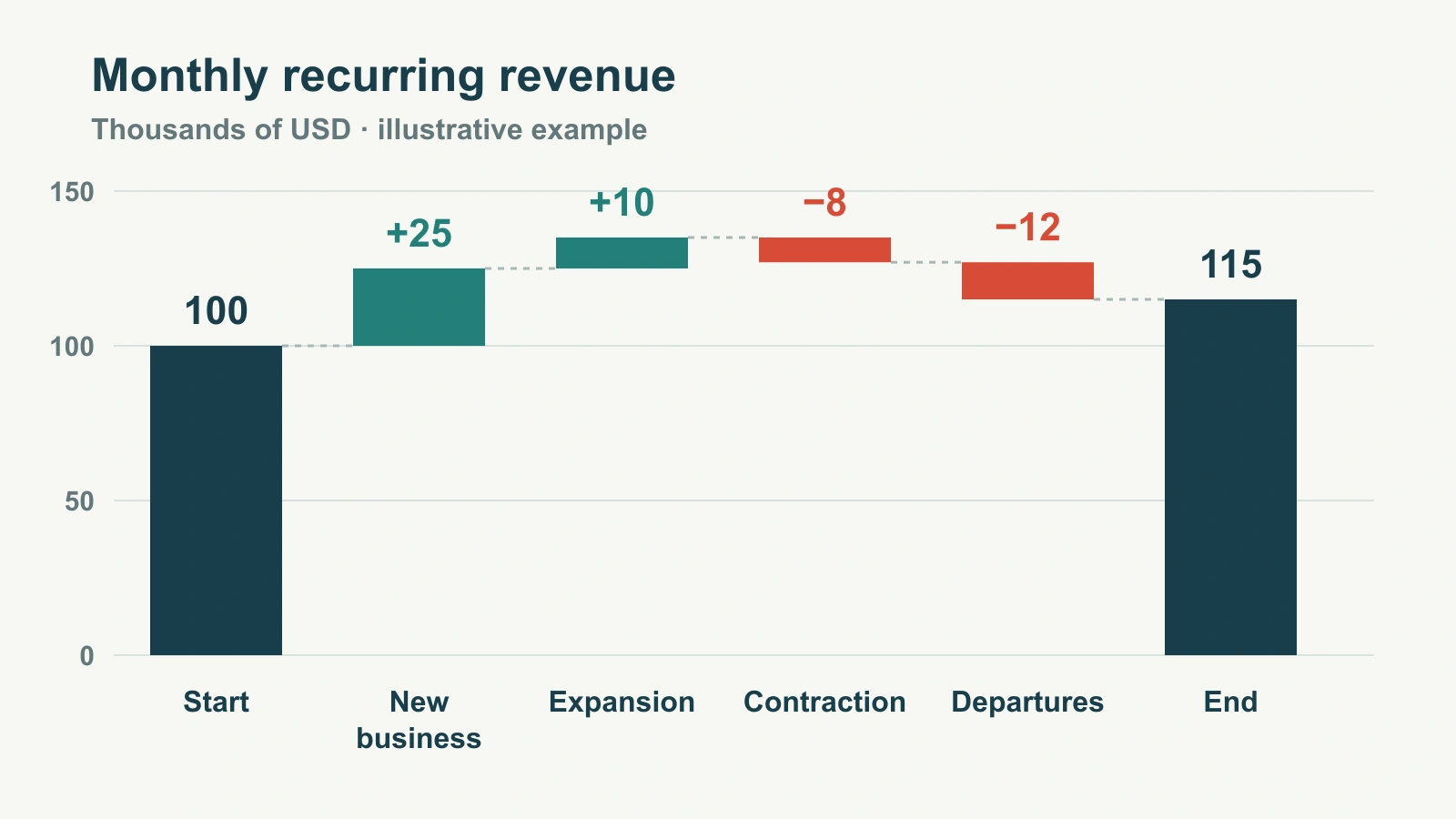
Consider a fictional recurring-revenue report, expressed in thousands of USD per month. The starting value is 100. New customers add 25, expansion adds 10, contraction removes 8 and customer departures remove 12. The ending value is 115.
100 + 25 + 10 − 8 − 12 = 115.
These categories are mutually exclusive movements in this example. A revenue loss cannot appear under both contraction and customer departures. There are no currency movements, reactivations or other changes. A real report must include every relevant movement or explain a genuinely unresolved remainder.
The bridge shows how the recurring-revenue total changes. It does not show cash receipts, profit or the number of customers. Keep the measure and unit near the chart so readers do not infer a different result from a familiar business label.
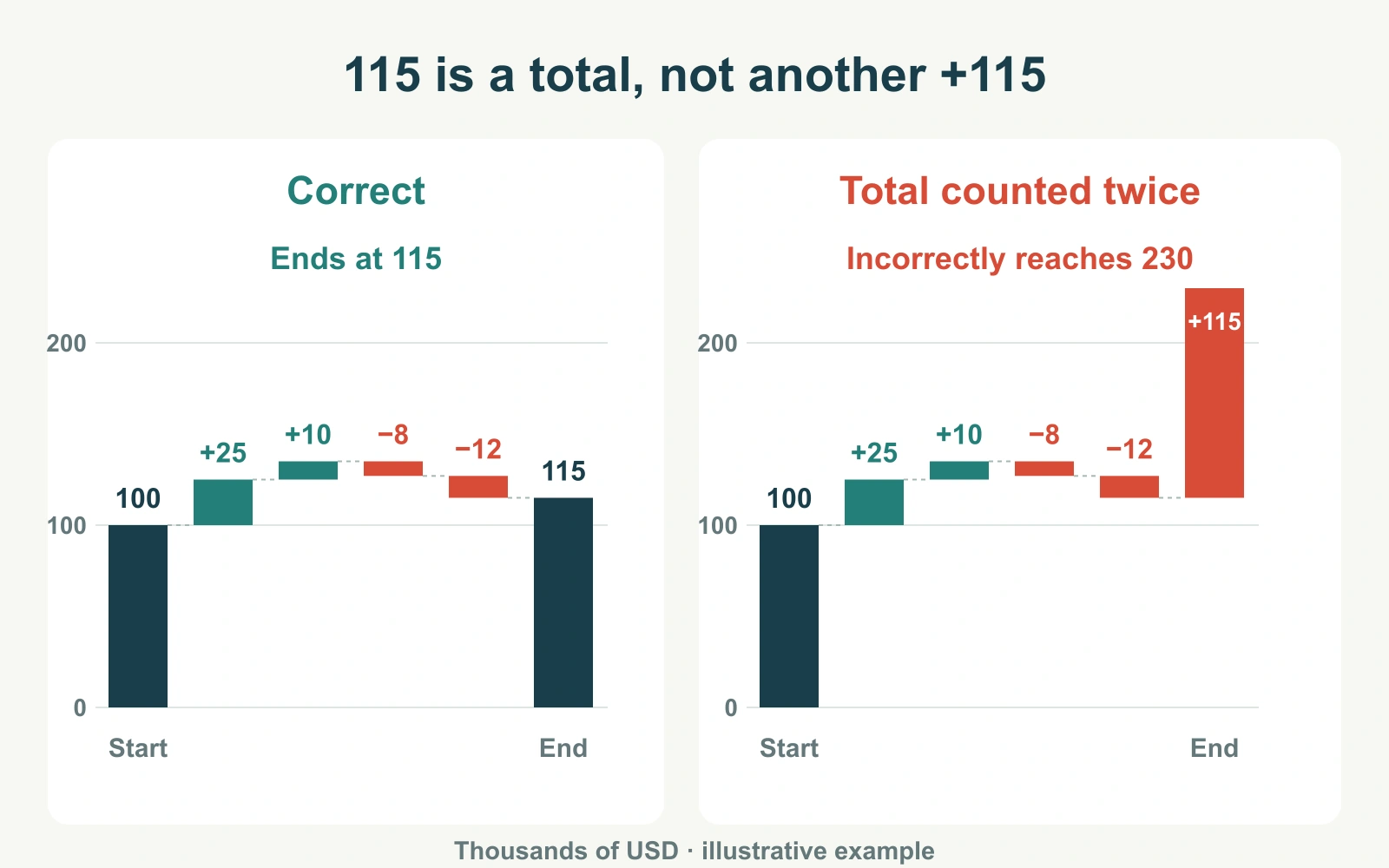
Before drawing anything, ask whether each row is a movement or a total. “New business: +25” changes the running amount. “Ending revenue: 115” summarizes it. Treating both as additions is the most consequential mistake in this example.
Prepare a source table that can be checked
Keep a working column for the running balance even if the charting tool does not need it. That column makes it easy to see where each floating bar should begin and end.
| Category | Value | Type | Running balance |
|---|---|---|---|
| Starting revenue | 100 | Total | 100 |
| New customers | +25 | Increase | 125 |
| Expansion | +10 | Increase | 135 |
| Contraction | −8 | Decrease | 127 |
| Customer departures | −12 | Decrease | 115 |
| Ending revenue | 115 | Total | 115 |
All values are thousands of USD in monthly recurring revenue. The first and last bars represent totals measured from zero. The intermediate bars represent changes: new business spans 100 to 125, expansion 125 to 135, contraction 135 down to 127, and departures 127 down to 115.
The last movement ends at the same level as the final total. If it does not, either the data or the visual is wrong. Do not stretch the final bar or adjust a number to make the picture appear to reconcile.
For a budget-specific discussion, you may also need to distinguish changes caused by activity from remaining differences against an adjusted budget. That is a separate analytical task, illustrated in the budget-variance presentation example. A waterfall can display the calculation, but it cannot choose the right model for you.
Build and label the bridge
A spreadsheet chart is useful when the values will change. A carefully constructed diagram can work for a fixed explanation, but the shapes do not calculate anything by themselves. Whichever approach you use, keep the source table with the working file.
For Excel, Microsoft's official waterfall-chart instructions describe selecting the data and choosing the Waterfall chart from the Insert controls. Select an individual total column and mark it as a total so it begins at zero rather than floating. Check the starting and ending totals separately. Connector lines can help readers follow the level from one change to the next; the document explains how to show or hide them. Use the instructions for your version and platform.
Then adapt the chart for the slide. Label the total bars “Start” and “End” with the relevant period. Put a plus or minus sign on each movement, and retain the unit. Give the category names enough room to read without turning every label vertically.
Use a distinct treatment for totals and a consistent treatment for increases and decreases. Do not assume green always means good: an increase in cost and an increase in revenue have different implications. Direct labels should still explain the chart if the audience cannot distinguish the colors.
Spot a total that has been counted twice
Suppose the final row, 115, is left as an ordinary positive movement. After the running balance has already reached 115, the chart adds another 115 and finishes at 230. Nothing in the business data doubled. The chart is treating a summary as a contribution.
A subtotal creates the same risk. If you insert “After growth: 135” after the two positive movements, it is a subtotal of the running balance, not an extra 135. Make its role explicit in the data and chart.
There is a different error that a chart setting cannot fix: overlapping source categories. If the 12 lost through customer departures is already included in the contraction figure, marking the totals correctly still leaves the business calculation wrong. Reconcile the underlying records before adjusting the display.
If the ending total is independently known but the listed changes do not explain it, show the gap as unresolved with a clear label. “Unexplained difference: −3” is more honest than assigning it to “Other savings” without evidence. The next task is to investigate the gap, not decorate it.
Choose an order that explains the change
The order of the intermediate categories can change the shape of a bridge without changing the final arithmetic. In the example, grouping increases before decreases makes the offset easy to see: gains of 35 are partly offset by losses of 20, leaving a net increase of 15.
That ordering is explanatory, not a claim that all new business happened before all departures. If the sequence is genuinely chronological, retain the chronology. Otherwise, say that the chart groups contributions by type.
Do not turn each month in a time series into a floating contribution if those numbers are already monthly totals. A line or column chart will usually answer that question more directly. Similarly, product revenue categories that add up to one period's total describe composition; they are not automatically changes from a starting value.
When there are too many movements for one readable slide, keep the material ones in the main chart and disclose how the remainder is grouped. A small positive and a small negative amount can cancel numerically while representing different issues. Do not hide an important problem inside a convenient net “Other” bar.
Write the slide around the bridge
For the fictional data, a useful headline is “Growth of 35 was partly offset by 20 in losses, leaving revenue 15 higher.” A shorter title, “Revenue increased from 100 to 115,” is also accurate but explains less about the contributors.
Place a short context line under the title: “Monthly recurring revenue, thousands of USD; fictional example; contributions grouped by type.” The plot can then carry the detailed categories. Avoid an additional paragraph that repeats every number already printed on the chart.
The next slide should follow the actual discussion. If the question is why contraction occurred, show the evidence behind that category. If the question is forecasting, introduce a separate forecast with its assumptions. The historical bridge does not predict that next month's net increase will also be 15.
Presenti can help arrange the surrounding narrative from a prepared brief. Use the already-checked chart and explain the takeaway; do not assume a generated slide has recreated a native, editable waterfall object. If the recipient needs to change the figures, deliver the source table and the appropriate editable chart file through your approved handoff process.
Before presenting, trace the bridge once from left to right and compare it with the equation. Every signed change should lead to the next balance, and the final balance should match the final total. That simple reading is the foundation of a clear waterfall slide.