If you've searched for what an AI presentation generator can actually do, you've probably already opened one or two and gotten a mixed answer — some things are genuinely automatic, others still need you. This guide breaks down every part of the process: what a presentation tool means in the AI era, the full feature list, when to reach for which feature, a step-by-step walkthrough of generating a deck, and exactly where AI stops and you need to take over.
What Is a Presentation Tool in the AI Era?
A presentation tool used to mean one thing: software for arranging text and images on slides — PowerPoint, Keynote, Google Slides. You did the thinking; the tool did the formatting.
An AI presentation tool is a different category. It still produces slides, but it also does part of the thinking: it reads unstructured input — a topic, a document, a link, even an existing deck — and makes structural and design decisions for you, handing back an editable draft instead of a blank canvas.
Presenti sits in this category. It isn't a single "type in a prompt" tool — it's a set of entry points (generate from a prompt, import a file, generate from a link, polish an existing deck, or start from a template) that all feed into the same design and editing engine, so the starting point you choose depends on what you already have.
The Full AI Presentation Generator Capability List
Before going scenario by scenario, here's an overview of Presenti's documented features, grouped by what stage of the workflow it belongs to.
| Feature | What it does |
|---|---|
| Generate Slides (AI) | Builds a full deck outline and design from a topic, title, or short prompt |
| Import File (AI) | Drafts slides from supported documents, text, mind maps, and audio; check the input and plan requirements |
| Generate from Outline | Turns a rough bullet-point outline or pasted text into a structured slide narrative |
| Generate from Link (AI) | Converts a webpage or product page URL directly into slide content |
| Slide Polisher (AI) | Redesigns and tightens an existing deck without rebuilding it from scratch |
| Start from Scratch / Generate from Template | Blank canvas or curated template library across categories like Pitch Deck, Business, Research, Education, Marketing, Social Media, Thesis Defense, Technology, and Medical |
| Auto-Design | Automatically selects layout, color scheme, and typography based on content type |
| Brand Kit (Material library, Brand templates, Brand fonts, Brand color) | Stores reusable brand assets and templates for review across team decks |
| Real-time collaboration | Multi-user editing, in-slide comments, and named, restorable version history |
| Export | Editable PPTX and PDF output on paid plans |
Which and When to Use These AI Presentation Features?
Having seven different starting points only helps if you know which one fits your situation. Here's how to think about each one.
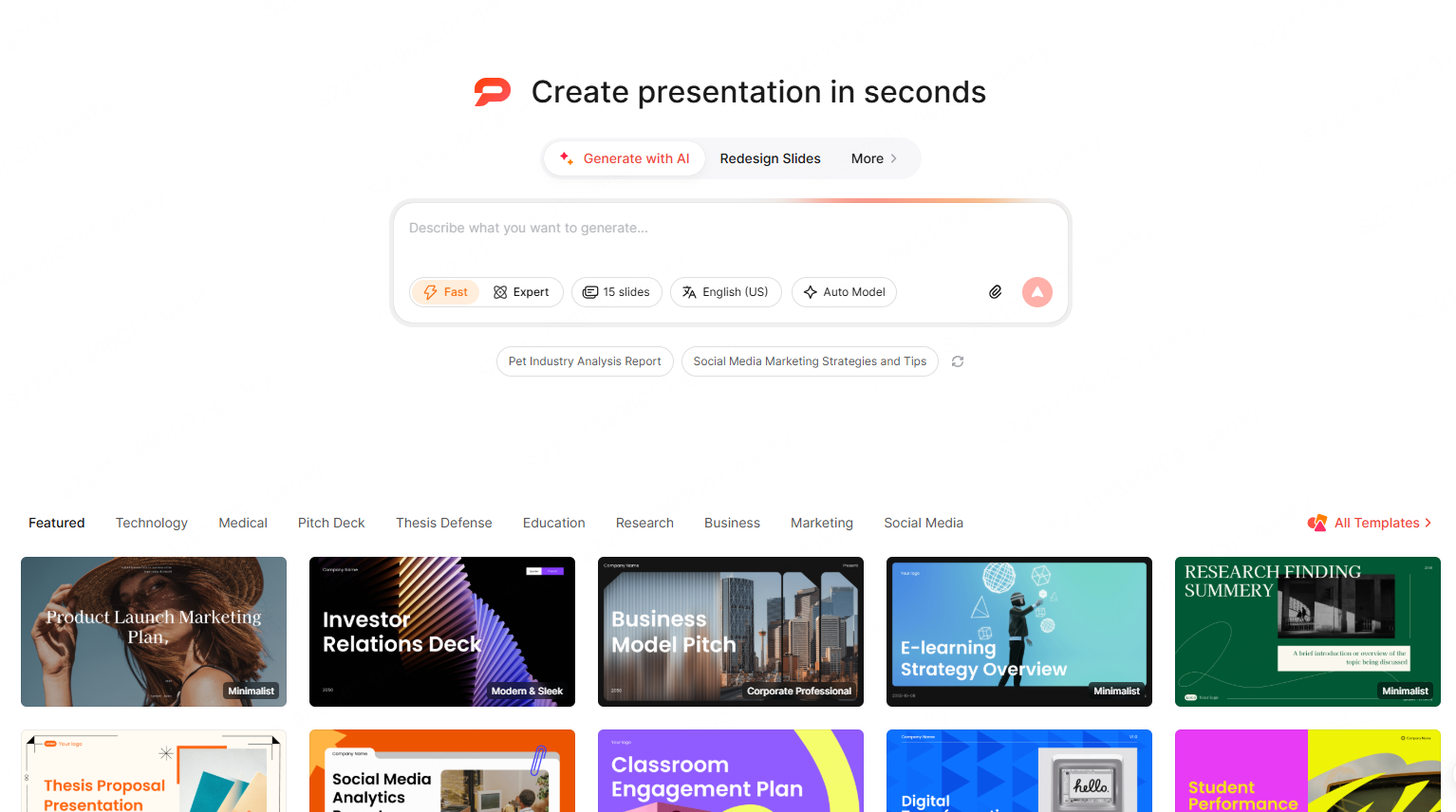
AI Slides Generator— when you only have an idea. This is the right entry point when there's no source material yet, just a topic like "Q3 sales review for the leadership team." Before generating, you can set the slide count, the output language, and a Fast vs. Expert mode — choose the mode available in your account according to its description and your task. This is the closest thing to a classic AI slide generator experience: type a sentence, get a deck.
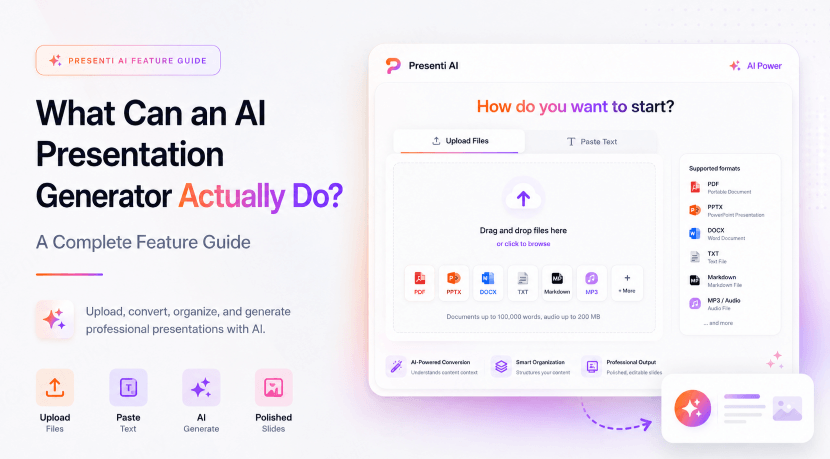
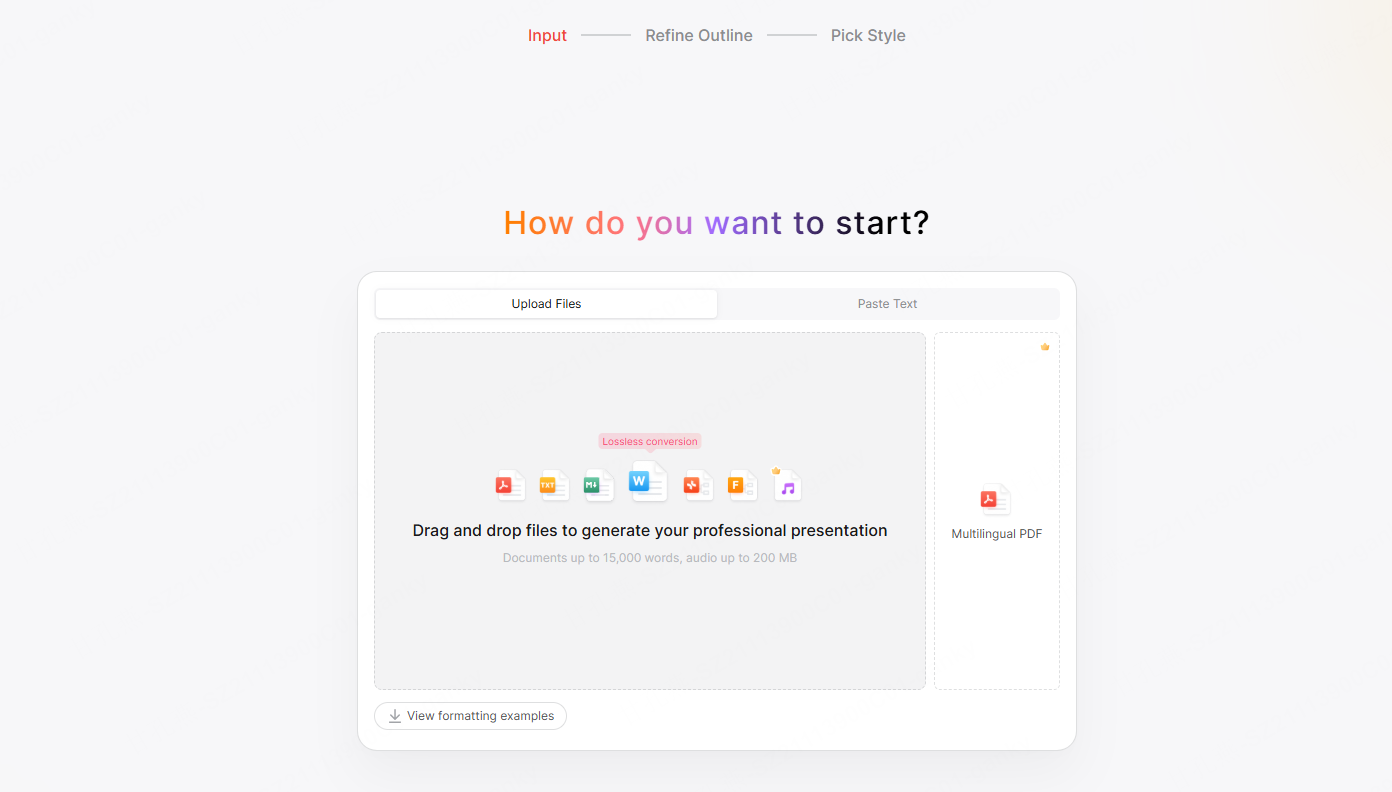
Import and Convert Document to Presentation — when content already exists. If you have a Word doc, PDF, PPT, plain text, or Markdown file, this converts it directly rather than making you retype anything. It also accepts audio files, so a recorded talk or briefing can become a deck without a separate transcription step. The illustrated import dialog shows documents up to 15,000 words and audio up to 200 MB. Follow the limits and supported formats shown in your account. Check extraction quality, especially for scanned PDFs or multilingual material. Word/PDF/TXT imports are listed on paid plans.
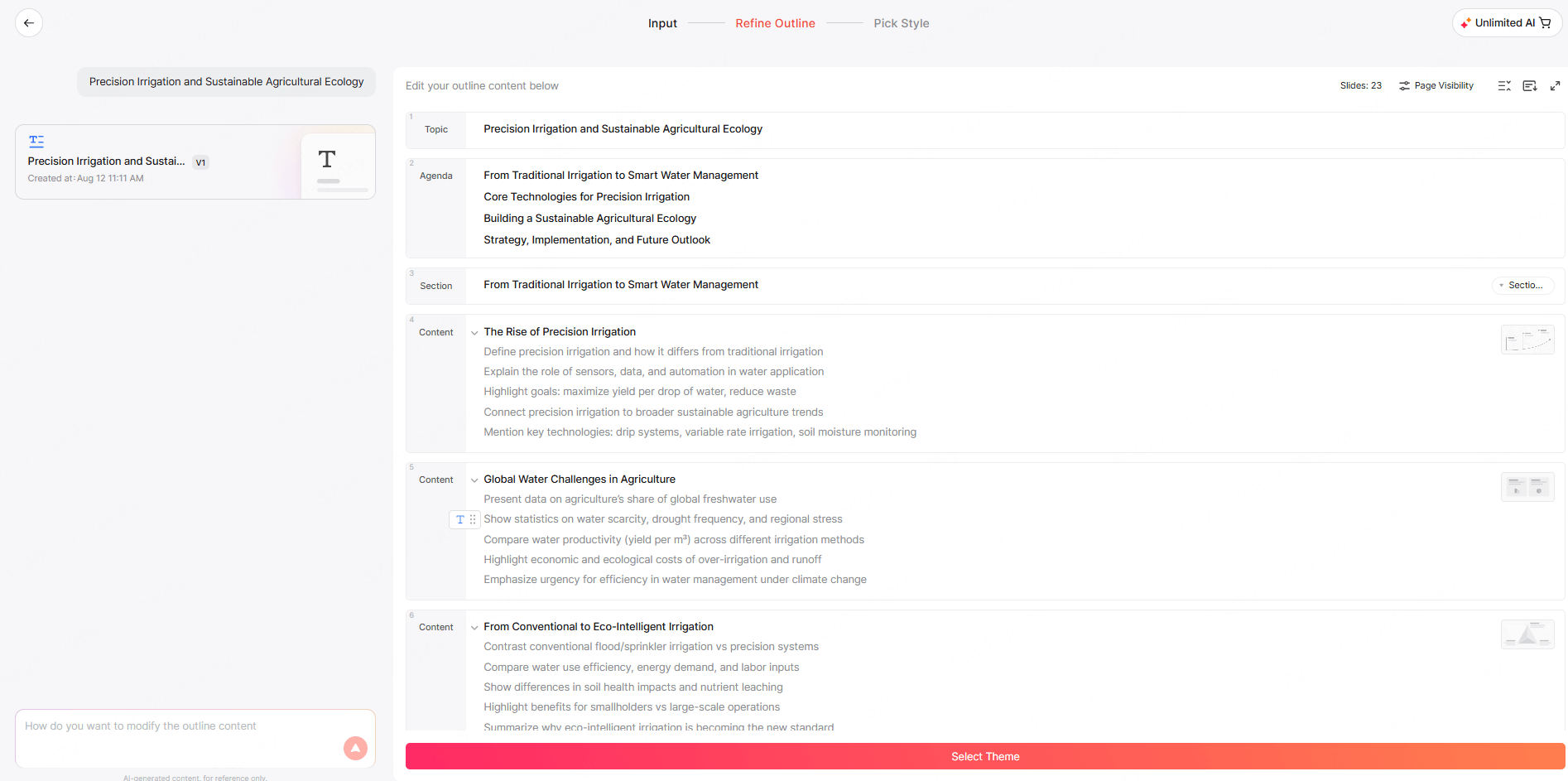
Generate Presentation from Outline — when your input is messy, not missing. This is distinct from a file import: it's built for the in-between case where you have bullet points or a rough structure already but no polished document. The AI reorganizes that structure into a coherent slide narrative rather than converting a formatted file.
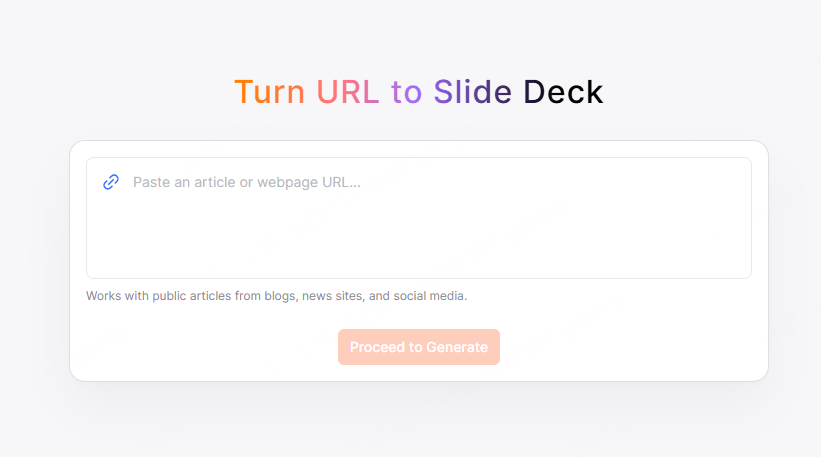
Turn Link to Slide Deck — when the content lives on a webpage. Paste a URL — a product page, a landing page, a blog post — and the tool extracts and restructures that content into slides, which is useful for turning a website into a pitch or overview without manually copying text.
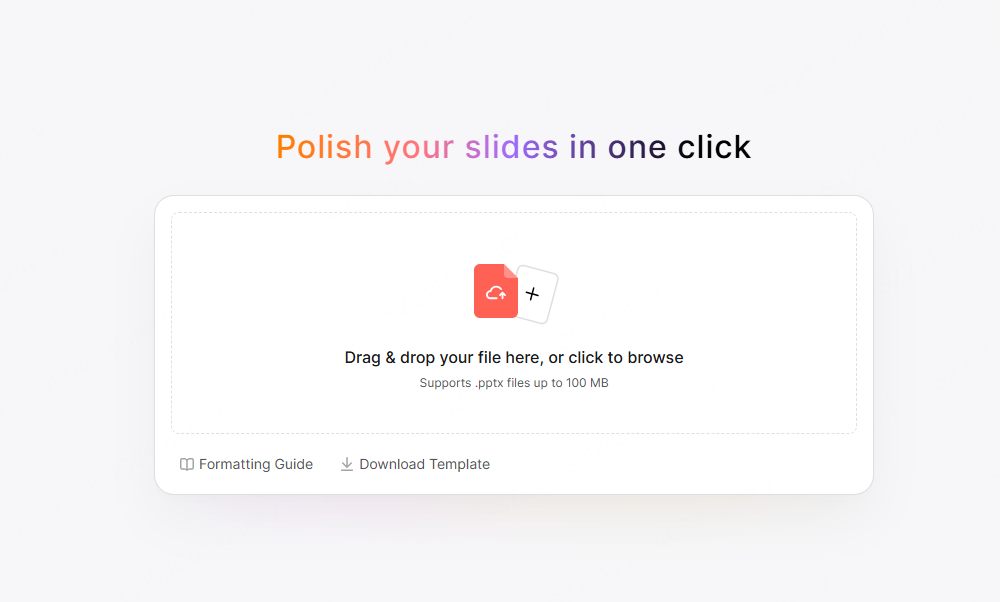
AI Slide Polisher — when the deck exists but looks rough. This is for decks that already have the right content — maybe built manually, or generated earlier and never cleaned up — and just need better layout, spacing, and visual consistency without a full rebuild. It's a separate action from Auto-Design because you're improving something that already exists, not generating from zero.
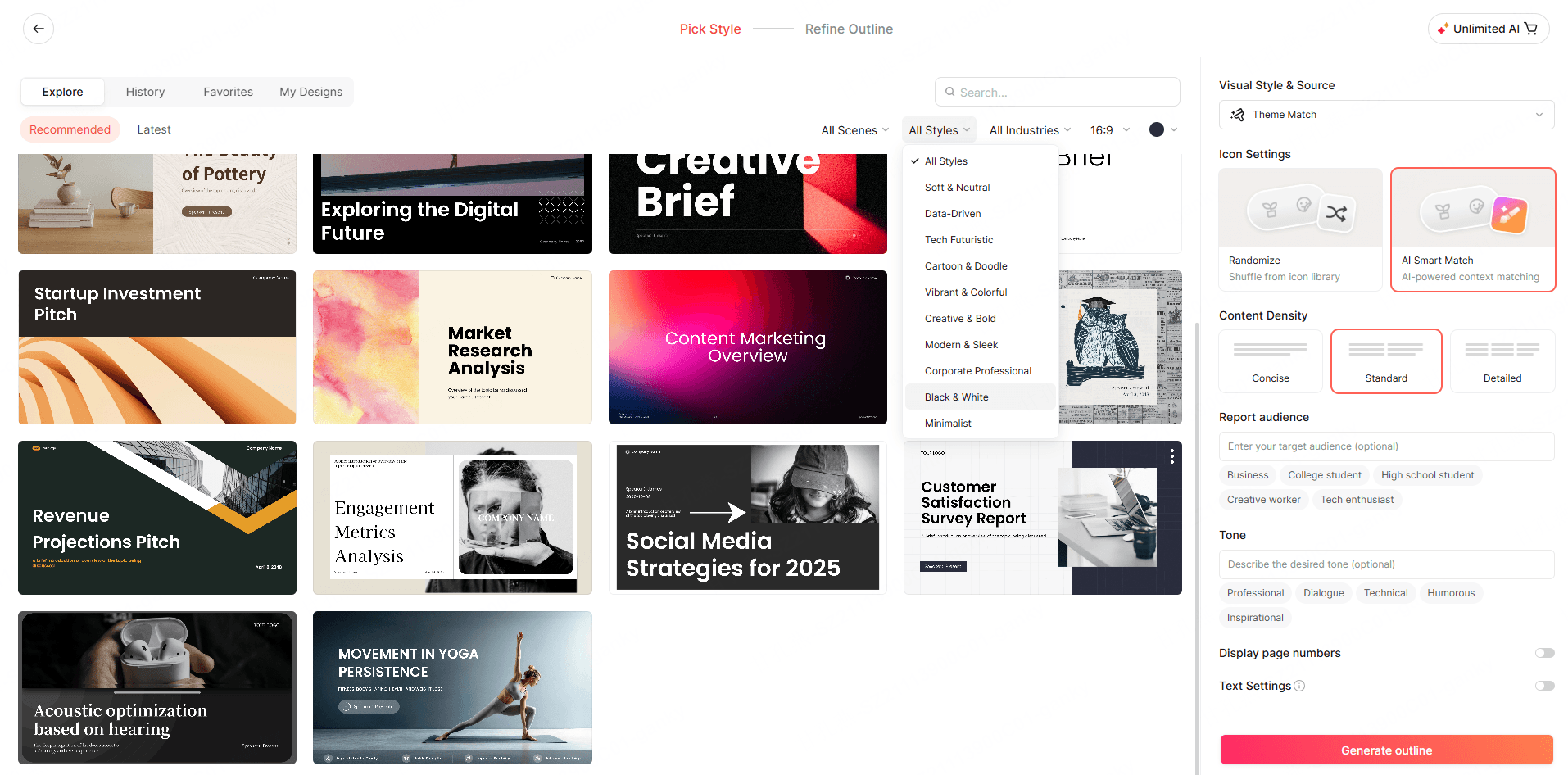
Start from Scratch / Generate from Template — when you want more control. The template library isn't just generic business layouts; it's organized by genre, including Thesis Defense and Medical templates alongside Pitch Deck, Marketing, and Education — so a student and a sales team aren't picking from the same visual language.
Brand Kit — when consistency across a team matters. Use Material library, Brand templates, Brand fonts, and Brand color to organize reusable brand assets. Apply an approved template, then review logo placement, fonts, and colors in the resulting deck. You can customize a template for your brand, then reuse it when generating presentations.
Collaboration tools — when a deck needs more than one person. Comments let reviewers leave feedback directly on a slide and mark it resolved once addressed. Real-time multi-user editing means several people can be in the same deck simultaneously rather than passing a file back and forth. Version history offers named checkpoints and restore controls. Restoring an earlier state may replace later changes, so preserve work you still need before restoring.
Step-by-Step: How to Generate a Presentation with AI?
New-deck generation uses the Input → Refine Outline → Pick Style workflow. Existing PPTX redesign is a separate Slide Polisher task.
- Choose your input. Switch between "Upload Files" and "Paste Text." For uploads, drag in a supported file — PDF, TXT, Markdown, PPT, Word, or audio. Check the word and file-size limits shown in the import dialog, and check the "View formatting examples" link if you're unsure how your document's headings and structure will map onto slides.
- Refine the outline before anything gets designed. This is the step that's easy to miss: before the visual deck is generated, you get a chance to review and edit the AI's proposed outline — add a section, cut one, reorder points — so the structure is right before layout and design are applied on top of it.
- Pick a style. Choose a template or visual direction for the deck. Review the available slide-count, language, and generation-mode settings as you move through the current interface.
- Generate, then edit. Once the draft deck exists, use the AI Assistant to rewrite copy, adjust tone, or turn a paragraph into a table; run Slide Polisher if the layout needs tightening; and bring in collaborators for comments and live editing.
- Save and export. Save a named checkpoint when useful. Editable PPTX and PDF exports are listed on paid plans; inspect the exported file before sharing.
Where AI Still Needs You
An AI presentation generator removes the blank-page problem and most of the layout busywork. It does not replace judgment. Here's the honest split.
| AI handles well | Still needs a human |
|---|---|
| Structuring raw content into a slide sequence | Confirming that structure matches how you actually want to present it |
| Choosing layout, color, and typography | Final brand compliance — exact logo placement, legal disclaimers, brand color codes |
| Drafting slide copy from your notes or documents | Fact-checking numbers, quotes, and claims before they reach a client or investor |
| Reorganizing a long document into sections | Deciding what to cut — the draft may omit or overemphasize material, so select what the audience needs |
| Keeping formatting and design consistent across slides | Rehearsing delivery, timing, and the parts that only make sense spoken aloud |
The realistic framing: an AI slide generator can provide a first draft whose quality depends on the inputs and review. The last stretch — accuracy, tone for this specific audience, and delivery — is still yours.
FAQ
What is a presentation tool in the context of AI?
It's software that doesn't just format slides but interprets your input — a prompt, a document, a link, or an existing deck — and makes structural and design decisions for you, producing an editable draft instead of a blank canvas.
What can an AI presentation generator do end-to-end, and where does it still need human editing?
It can take a prompt, file, link, or rough outline through outlining, design, and export to an editable PPTX or PDF, with real-time collaboration along the way. It can't guarantee factual accuracy, brand compliance, or the judgment calls about what to cut for a specific audience — those stay human tasks.
Looking specifically for a meeting-notes-to-deck workflow?
We cover that in a dedicated walkthrough — see our guide on turning meeting notes and action items into a polished presentation.
Try a topic or outline with the limited free AI allowance, and check the plan requirements for document imports and export before starting a larger project.