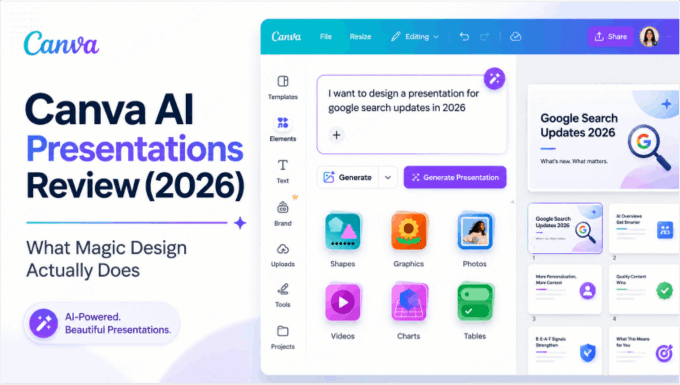
Canva's AI presentation tools can draft an outline and slides, then leave you in a visual editor with templates, images, charts, and collaboration tools. It is a reasonable choice when a presentation is part of a wider design project and you want to keep the assets together.
It is not limited to decorating text you have already written. The important distinction is between generating a deck, supplying files as context, and preserving an existing document's layout. Those are different jobs. This review uses Canva's documentation to explain them; Presenti, the publisher, offers a competing tool.
What Canva's AI presentation tools do
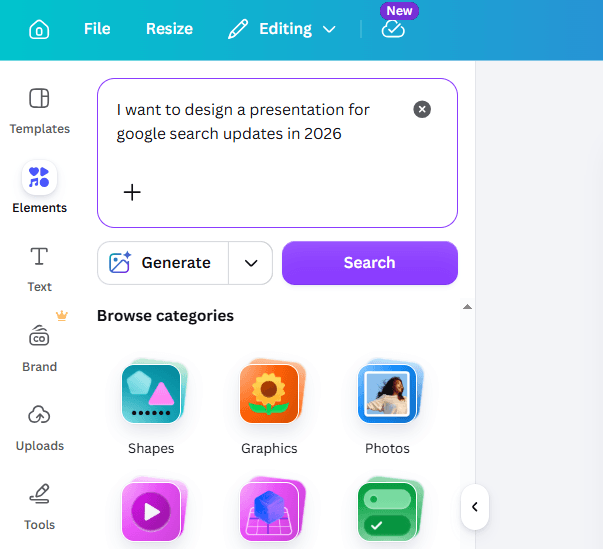
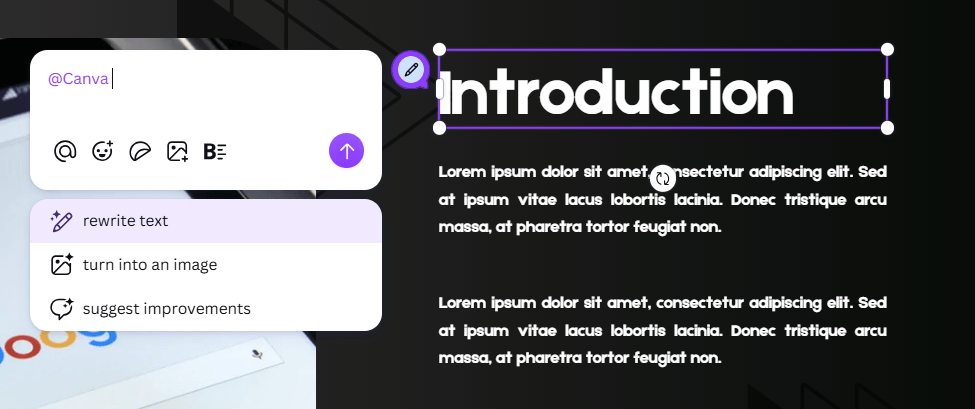
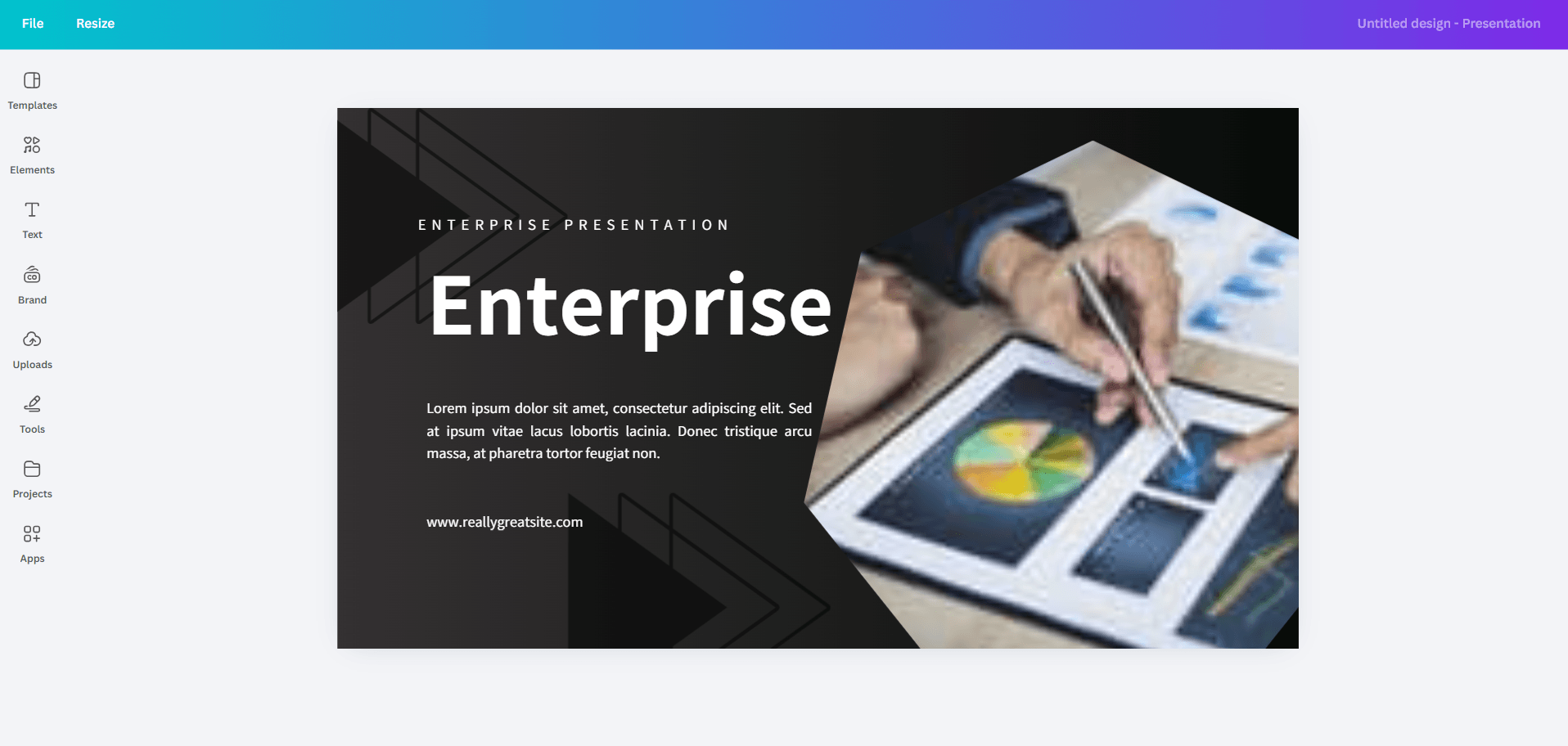
Canva's current presentation workflow starts with a prompt and audience, style, and length options. It generates an outline that you can review before creating the designed slides. You can then change the content and layout in the editor.
That makes the outline an important stopping point. A polished theme will not fix a deck that answers the wrong question. Replace vague section labels with the points you actually want the audience to remember before spending time on individual slides.
Magic Write and other AI features can help with wording and visuals during editing. Their existence does not make generated copy a source: names, figures, quotations, and product claims still need to come from your material.
Where Canva is worth considering
Canva is a sensible candidate when the same campaign needs slides, graphics, and other designs, or when collaborators already work in its editor. A familiar workspace can matter more than adding another generation tool.
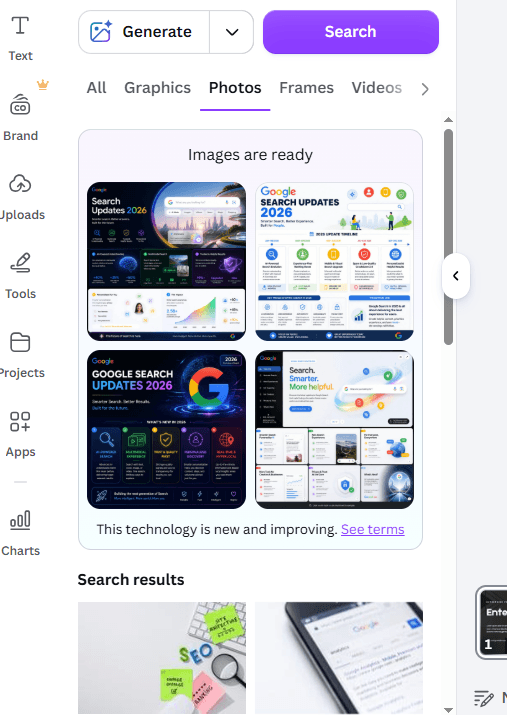
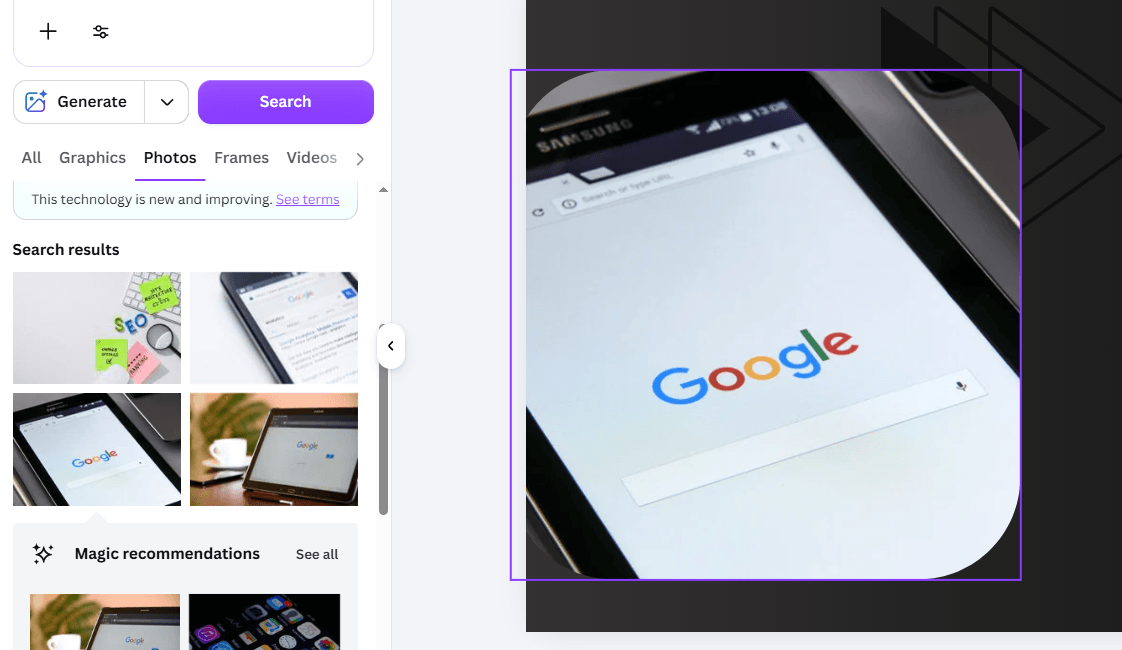
For example, a marketing team may need to reuse a photo, revise a headline, and keep a consistent visual style across several deliverables. The useful trial is to make those ordinary changes. A single attractive AI preview does not show how easily the team will finish the work.
Keep ownership of the narrative. Start with the audience's question, include the few facts needed to answer it, and remove a slide if it merely repeats the preceding one. There is no benefit to a longer deck simply because the tool can produce it.
Documents, charts, and the retired Docs-to-Decks button
Canva AI can use files as context. Its cloud-import instructions cover Word, PDF, Markdown, spreadsheets, and other supported formats through Google, Dropbox, and OneDrive. The documented limits are three files at once and 10 MB per file.
This corrects a common misconception: Canva is not restricted to a short prompt with no source material. However, supplying a file does not establish that the result will preserve its page layout or include every detail. Tell the tool whether you want a summary, selected findings, or approved wording retained.
The old Docs-to-Decks conversion button has been retired. Canva's current Docs guidance describes adding presentation pages within a Doc or moving content into a presentation. Do not spend time searching for the old button in a newer interface.
Charts do not require every value to be typed by hand, either. Canva documents chart data imports from CSV, TSV, and XLSX, as well as connected sources. Importing data and asking AI to interpret it are different operations. Check the selected series, units, and labels against the original table.
Free access and paid AI allowances
Canva has free and paid plans, but one universal “monthly AI credit pool” is not an accurate description of every feature. Its AI usage guidance distinguishes tools that use a shared allowance from tools that do not consume it on certain paid plans. Design generation and more demanding actions can use that allowance differently.
Before paying, try the tasks you actually repeat: draft an outline, revise a slide, replace an image, and produce the file you need. Note any account restriction when it appears. A feature being available in Canva does not mean it is included in every plan.
The price decision should include the number of people who need access, the brand controls you need, and the assets you use. Do not assume a personal subscription provides every organization-level permission or approval feature.
A five-slide example with a traceable source
Try the brief based on NASA's January 10, 2025 temperature announcement. It is a useful small exercise because the numbers depend on their comparison periods. Removing those labels would make an apparently neat summary less clear.
Download the source brief as Word, PDF, or Markdown. The five-slide reference deck is an editable editorial example, not an output from the tool reviewed here.
Supply the brief as context and ask for five slides for a general audience. Ask Canva to keep units, dates, and baselines beside the relevant numbers, and to add no unsupported data. Inspect the outline before design generation: a slide title should state a point, not just say “Analysis.”
Then change the longest title and move one source note. If a chart is added, compare its values with the brief; if the data is not there, remove the chart rather than accepting plausible-looking numbers. This is a proposed exercise you can run, not a claim that Canva produced the reference file.
Save the version your audience will receive and reopen it. Notice which edits remain easy and which require rebuilding an element. Those observations help you decide whether the workflow fits your work without turning one example into a product-wide rating.
When to compare Canva with Presenti
Canva's presentation generation and file-context features overlap with document-to-slide tools. A fair comparison starts with that overlap instead of claiming that one product can read documents and the other cannot.
For a report or written brief, you can compare Presenti's Word workflow or PDF workflow using the same input. Keep the audience, slide count, and requested output the same. Compare what each outline includes, what it leaves out, and how much work the required revisions take.
Choose Canva if its wider design workspace and your team's editing habits are useful to the project. Consider another tool if its approach to the specific document and final handoff fits better. The Canva alternatives comparison applies that decision to Presenti and Beautiful.ai using source input, editing, and handoff requirements.
FAQ
Can Canva's AI write presentation content?
Yes. Canva describes an AI presentation workflow that creates an outline and slides. Treat the result as a draft and check its factual statements against your sources.
Can I give Canva AI a Word document or PDF?
Yes. Canva documents file-context import for supported documents. That is different from guaranteeing a lossless conversion of the original page design.
Where is the Docs-to-Decks button?
Canva says the old conversion feature is no longer available. Its current Docs guidance explains alternative ways to add presentation pages or transfer content.
Do I need a paid plan?
That depends on the AI actions, assets, and team controls you need. Try the required workflow and check the account's allowance and restrictions before choosing a subscription.